
Configuring CentroBot in Microsoft Teams
Overview
CentroBot brings AI-powered assistance directly into Microsoft Teams by connecting to Salesforce through Model Context Protocol (MCP) servers. This guide walks you through configuring CentroBot, enabling available connectors, and authenticating your accounts.
Prerequisites
Before you begin, ensure that:
The Centro app for Microsoft Teams has been installed in your Microsoft Teams organization.
You have access to your Salesforce org.
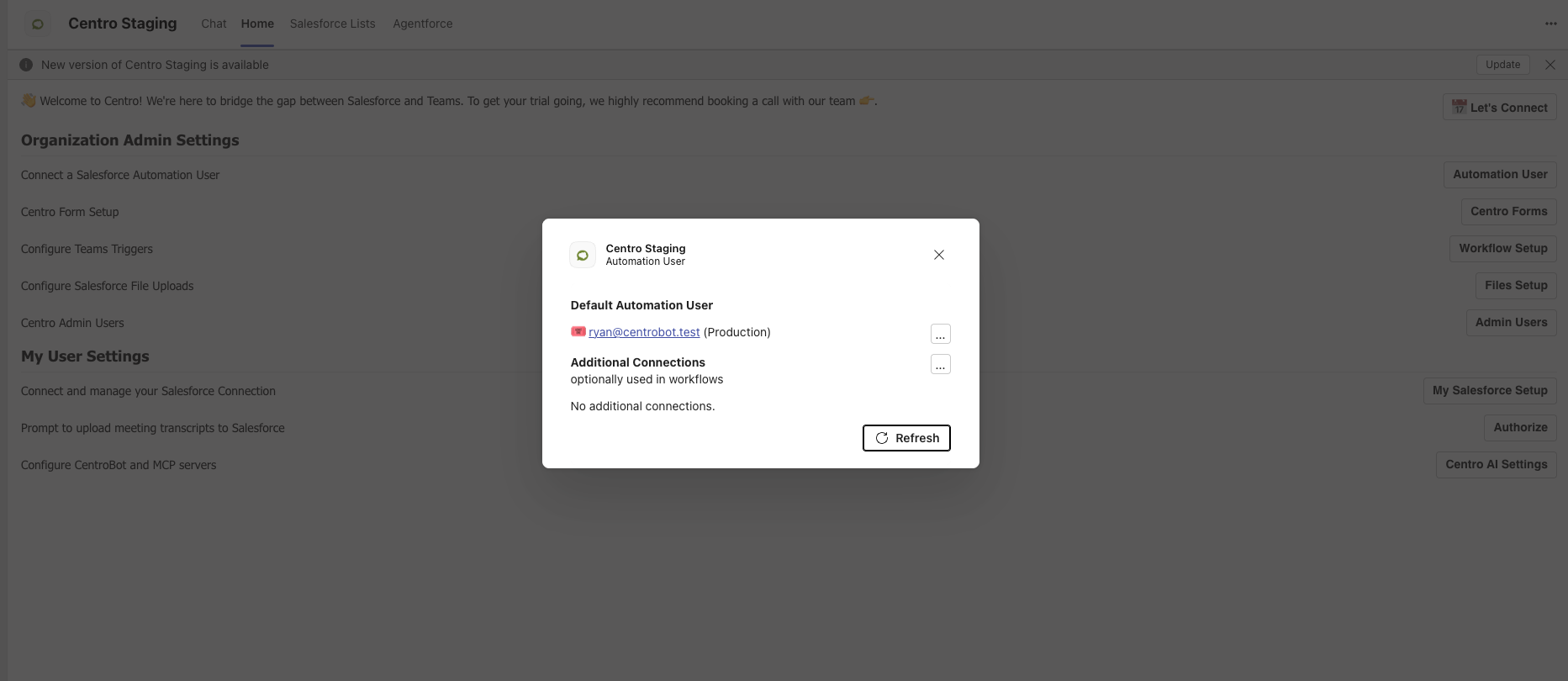
Your Centro Automation User need to be setup. Support Article
The appropriate Salesforce MCP servers have been activated.
-
You have either:
Centro Administrator permissions (to configure settings), or
A Centro User account (to authenticate and begin using CentroBot).
Step 1: Activate Salesforce MCP Servers
Log in to Salesforce.
Open Setup.
In the Quick Find box, search for MCP.
Locate the available out-of-the-box MCP configurations.
Activate the MCP servers you want to expose to CentroBot.
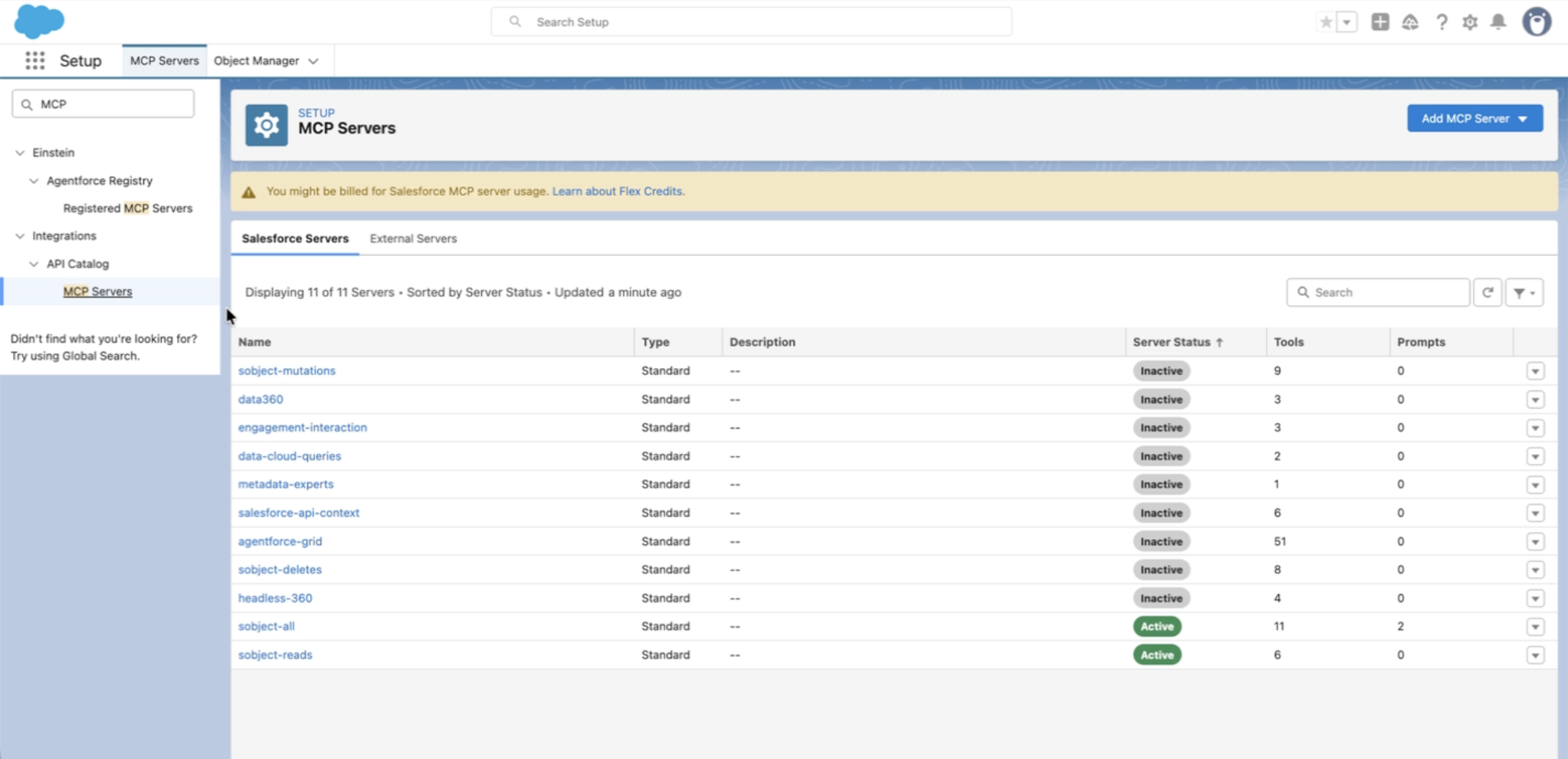
Common options include:
-
SObjects All
Provides read and write access.
Allows users to create, update, and manage Salesforce records they have permission to access.
-
SObjects Read
Provides read-only access.
Allows CentroBot to answer questions using Salesforce data without making changes.
Note: Users can only access Salesforce data that their Salesforce permissions allow.
Step 2: Open Centro AI Settings
Open Microsoft Teams.
Select the Centro app.
Navigate to the Home tab.
Under User Settings, select Centro AI Settings.
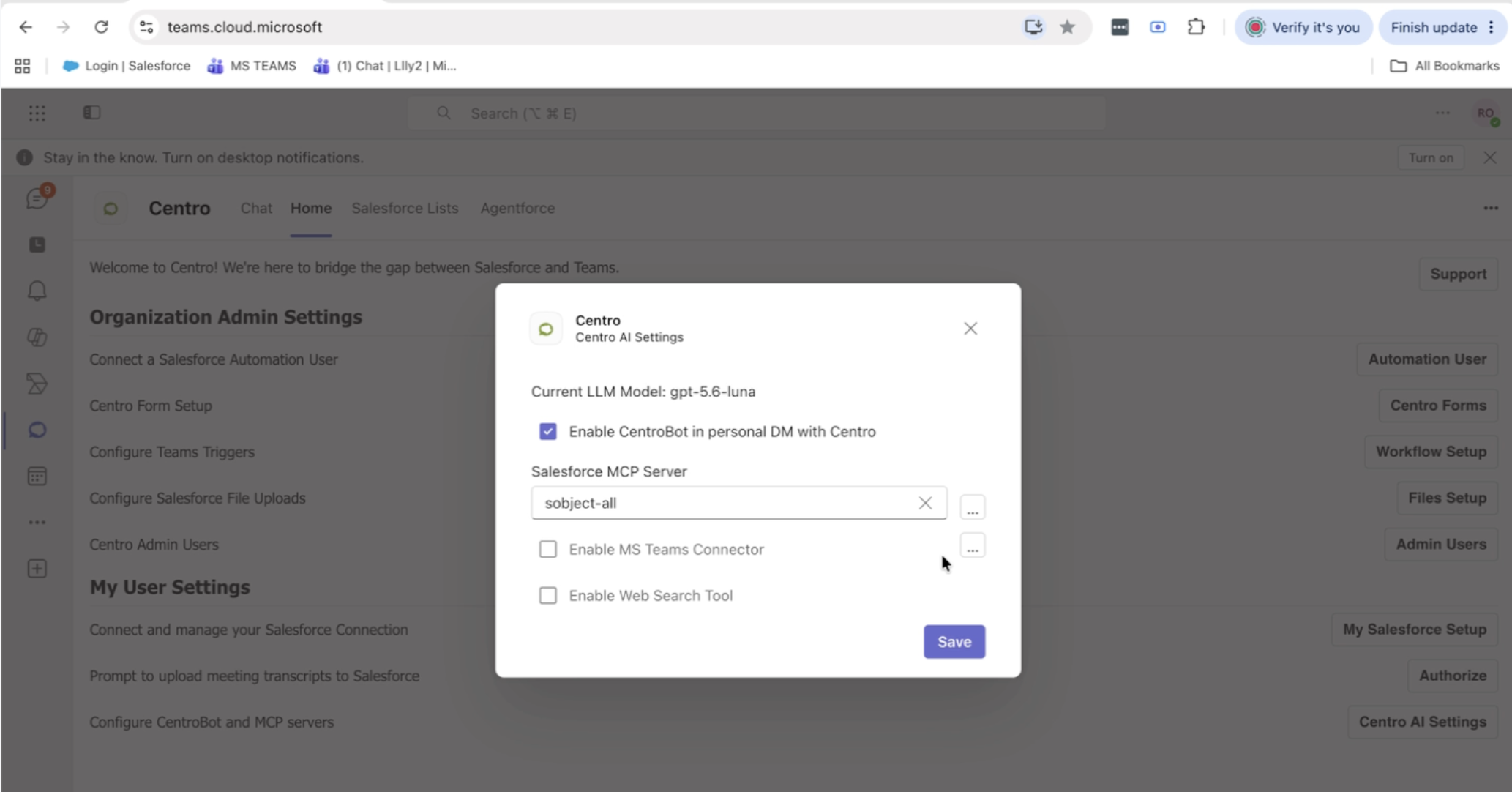
This page is used to configure the AI connectors available to CentroBot.
Step 3: Configure CentroBot
If you are a Centro Administrator, you can configure the available AI connectors for your organization.
If you are a standard Centro user, you only need to authenticate the services that have been enabled.
Within Centro AI Settings:
Enable CentroBot.
-
Select the Salesforce MCP configuration you want to use.
For example, choose SObjects Read for read-only access.
Step 4: Enable Optional Connectors
CentroBot can use additional data sources to improve responses.
Microsoft Teams Connector
Enable the Teams Connector to allow CentroBot to search:
Microsoft Teams chats
Team conversations
Channels the authenticated user has access to
Web Search
Enable Web Search to allow CentroBot to retrieve information from public websites when appropriate.
Note: Both the Teams Connector and Web Search require each individual user to authenticate before they can be used.
Step 5: Authenticate Your Connections
After selecting the connectors:
Select the three-dot menu.
-
Choose either:
Login to Production, or
Login to Sandbox
Sign in to Salesforce.
Select Allow Access when prompted.
Complete the authentication process.
Repeat authentication for any additional connectors that require it.
Step 6: Start Using CentroBot
Once authentication is complete:
Open a chat with CentroBot in Microsoft Teams.
Begin asking questions in natural language.
Examples include:
"Show me my open opportunities."
"Summarize my active cases."
"Find the latest information about this customer."
"Search my Teams conversations for Project Phoenix."
CentroBot will respond using the Salesforce MCP server and any additional connectors you have enabled.
Authentication Reminder
If a user attempts to use CentroBot before authenticating, CentroBot will prompt that user to complete authentication before it can access Salesforce, Microsoft Teams, or other enabled connectors.
Authentication is performed individually for each user to ensure secure access to their own Salesforce data and Microsoft Teams content.
Need Help?
If you experience issues configuring CentroBot or authenticating your connectors, please contact your Centro administrator or reach out to the Centro Support team for assistance.