Quick Start - Create Contacts or Leads when members join a Slack Connect Channel
After establishing a Slack Connect channel, typically people who join that channel should be in your Salesforce org as a Lead or Contact, denoting the origin of the Lead or Contact came from Slack Connect. With Centro's Workflow Builder Steps and Salesforce Flow Automations, all of this is done with no coding!
There are variations of this workflow to be considered:
- Automatic: Always create a lead or contact when a member joins
- Curated: Include a human intervention step to an internal channel which a person reviews the member and either adds or rejects inserting as a new contact/lead.
This article will focus on the Automatic path for Contacts, but will point out steps for Curated when possible. Let's get started!
- Use Centro to Link the Slack Connect channel to an Account. This can be done with the LWC in Salesforce or with the Centro action in Slack.
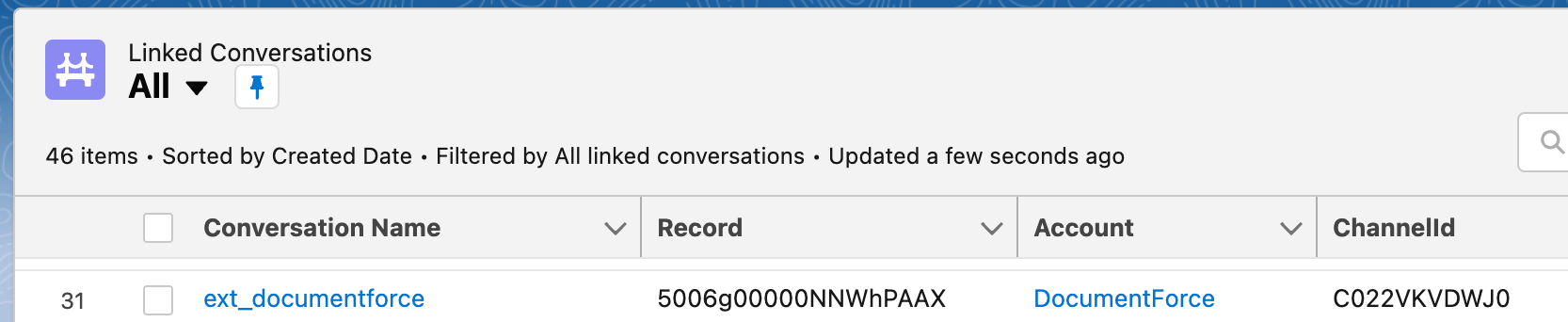
- You should be able to see the Linked Conversation, as shown below. Note that Centro automatically sets the Channel ID in Slack, the Salesforce Record ID (in this case the Account), and will try to set the Account field when it can:
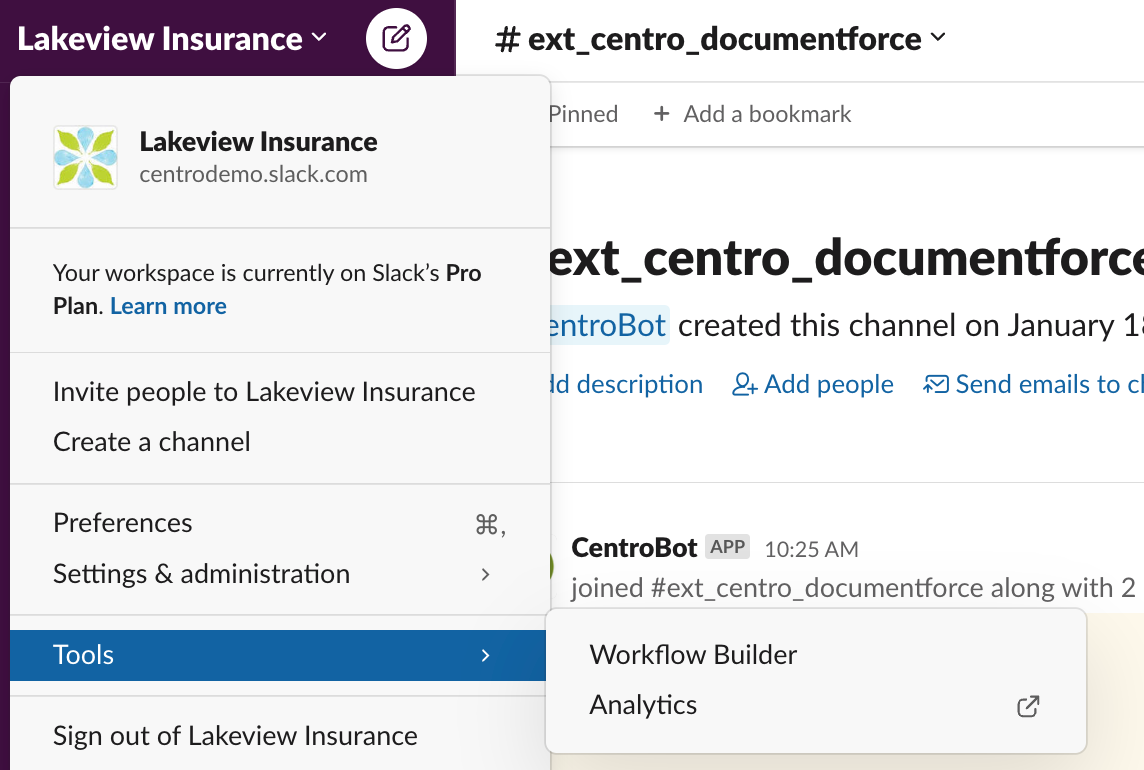
- Great! We'll need this for automated the Account field on the Contact.accountid field (which is required). Next let's setup the Slack Workflow. Go to Slack Workflow builder: Workspace menu->Tools->Workflow Builder
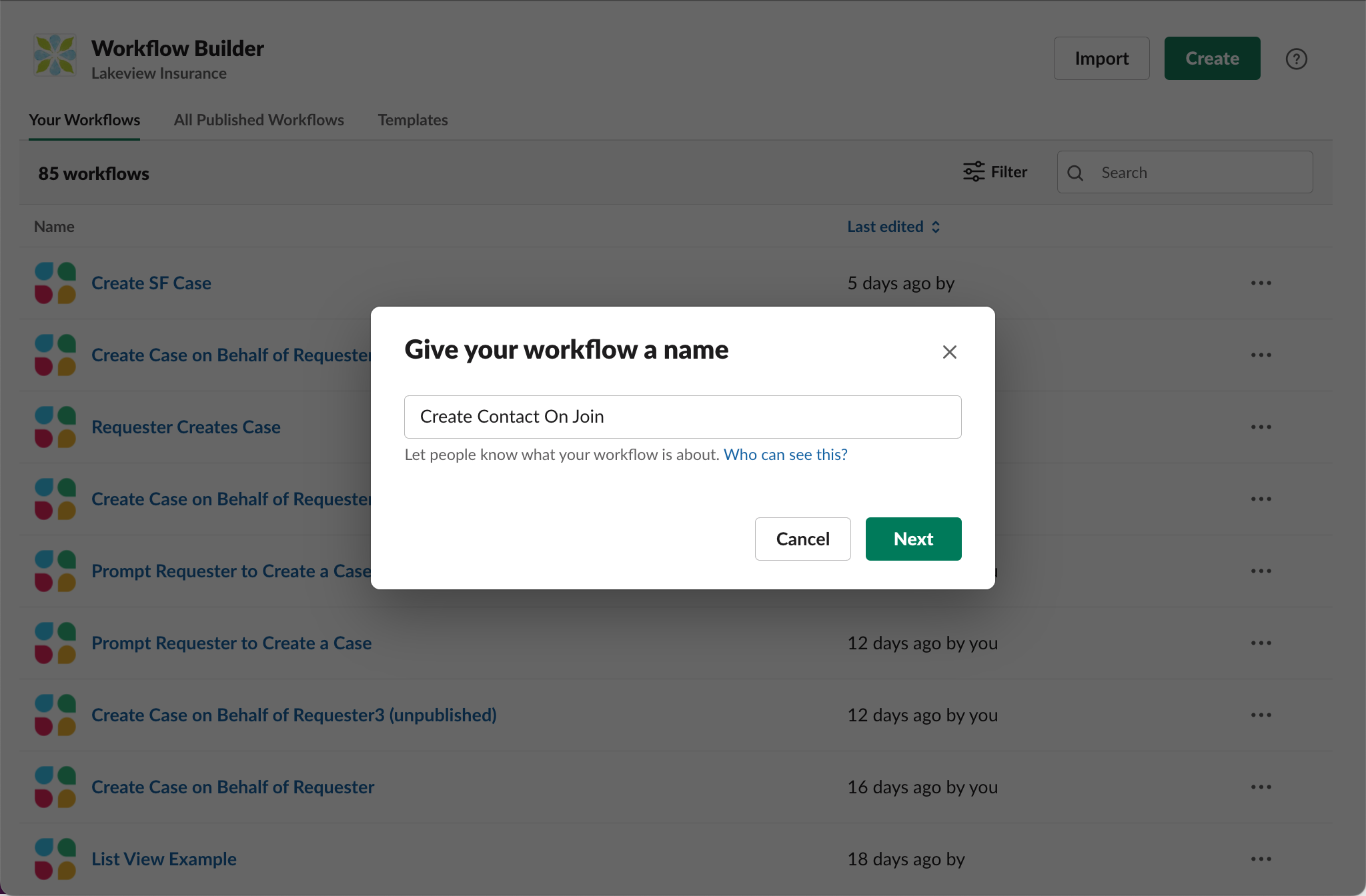
- Create New, and name the workflow something you'll recognize: