
How to Set Up Microsoft Connectors for Centrobot in Slack
Overview
Centrobot now supports Microsoft connectors, allowing you to access data from Microsoft Teams, Microsoft Outlook, and SharePoint directly within Slack.
Once configured, users can authenticate their Microsoft accounts and ask Centrobot questions about their Microsoft data without leaving Slack.
This article walks through enabling the Microsoft connectors and authenticating your Microsoft account.
Prerequisites
Before getting started, make sure you have:
Access to the Centro app in your Slack workspace.
Access to Centro AI Settings in Centro.
A Microsoft account with access to the Teams, Outlook, or SharePoint data you want to query.
Step 1: Open Centro AI Settings
Open the Centro app in your Slack workspace.
Navigate to the Home tab.
Open Centro AI Settings.
Locate the available connector options.
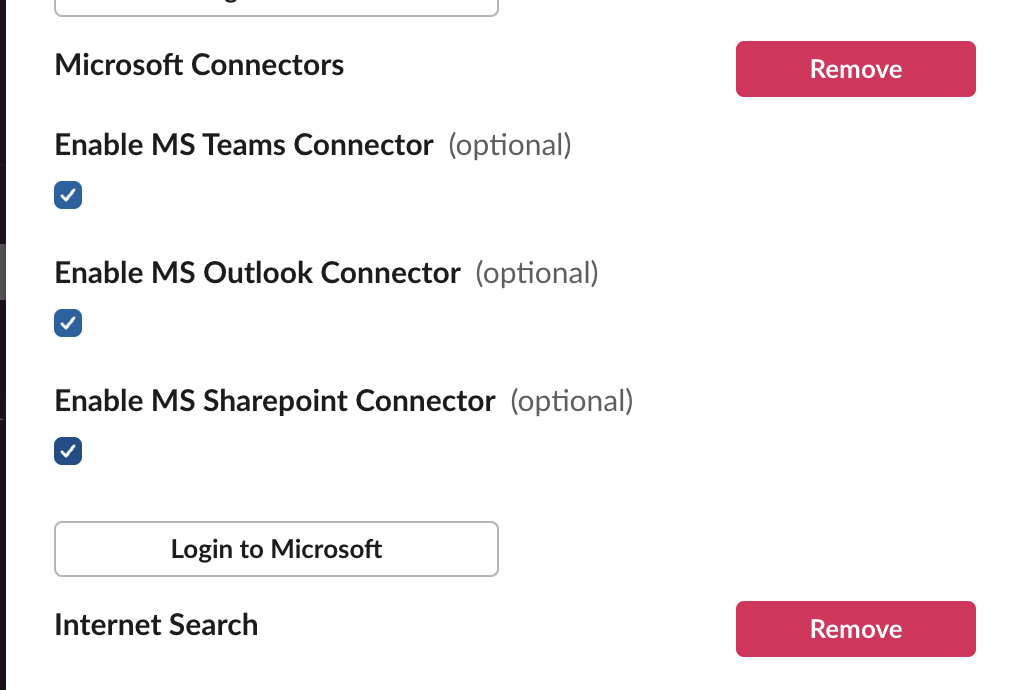
Step 2: Enable Microsoft Connectors
In Centro AI Settings, locate the connector pick list.
Select Microsoft Connectors.
-
Check the boxes for the Microsoft services you want to enable:
Microsoft Teams
Microsoft Outlook
SharePoint
Save or apply your settings if prompted.
Enable only the connectors you want to make available for Centrobot.
Step 3: Authenticate Your Microsoft Account
Enabling the connectors makes them available for configuration, but each user must authenticate their own Microsoft account to access their data through Centrobot.
Open Centrobot in Slack.
Click Log into Microsoft.
Sign in with your Microsoft account.
Complete any authentication or authorization prompts.
Once authentication is complete, Centrobot can use the connected Microsoft services to answer questions based on the data available to your authenticated account.
Step 4: Ask Centrobot Questions About Your Microsoft Data
After enabling the connectors and authenticating your Microsoft account, you can ask Centrobot questions directly in Slack about information in Microsoft Teams, Outlook, and SharePoint.
For example, you could ask Centrobot to help you:
Find information discussed in Microsoft Teams.
Locate relevant information from Outlook.
Find documents or information stored in SharePoint.
The results available depend on your connected services, authentication, and access permissions.
Troubleshooting
If Centrobot cannot access your Microsoft data, check the following:
Confirm the connector is enabled: Return to Centro AI Settings and verify that the appropriate Microsoft connector is selected.
Verify your Microsoft login: Make sure you have authenticated using the correct Microsoft account.
Check your access permissions: Confirm that your Microsoft account has access to the information you're trying to retrieve.
Reauthenticate if needed: If your connection is no longer working, try signing in again using the Log into Microsoft button.
If you continue to experience issues, contact the Centro support team for assistance.
Summary
With Microsoft connectors enabled, Centrobot brings Microsoft Teams, Outlook, and SharePoint data into your Slack workflow. Configure the connectors in Centro AI Settings, authenticate your Microsoft account, and start asking questions about your Microsoft data directly in Slack.