
Using Centro Action Prompts in Salesforce Flow
Overview
The Centro Action Prompt Flow Element allows Salesforce Flows to proactively send messages to users through CentroBot in Microsoft Teams. Users can then respond in natural language to complete tasks or interact with Salesforce data without needing to navigate directly into Salesforce.
This provides a powerful headless Salesforce experience: Salesforce Flow can initiate an interaction, provide the user with relevant context, and allow the user to complete the requested action through Microsoft Teams.
Action Prompts can be used with:
Auto-Launched Flows
Record-Triggered Flows
Scheduled Flows
Salesforce user or Teams user IDs
Dynamic prompts containing Salesforce record information
CentroBot and, where applicable, Agentforce agents
How Action Prompts Work
A typical Action Prompt process consists of two Centro Flow Elements:
Centro Send Notification — Sends an initial notification to the user explaining what is about to happen.
Centro Start an AI Session — Starts an interactive AI session with CentroBot and provides the prompt the user should act on.
For example, a Salesforce Flow could notify a user:
"Centro has an action for you. Please review your open tasks."
CentroBot can then provide the user with the full prompt and allow them to respond naturally in Microsoft Teams.
This allows Salesforce processes to become headless, where the Flow handles the automation and orchestration while the user interacts with Salesforce capabilities through Microsoft Teams.
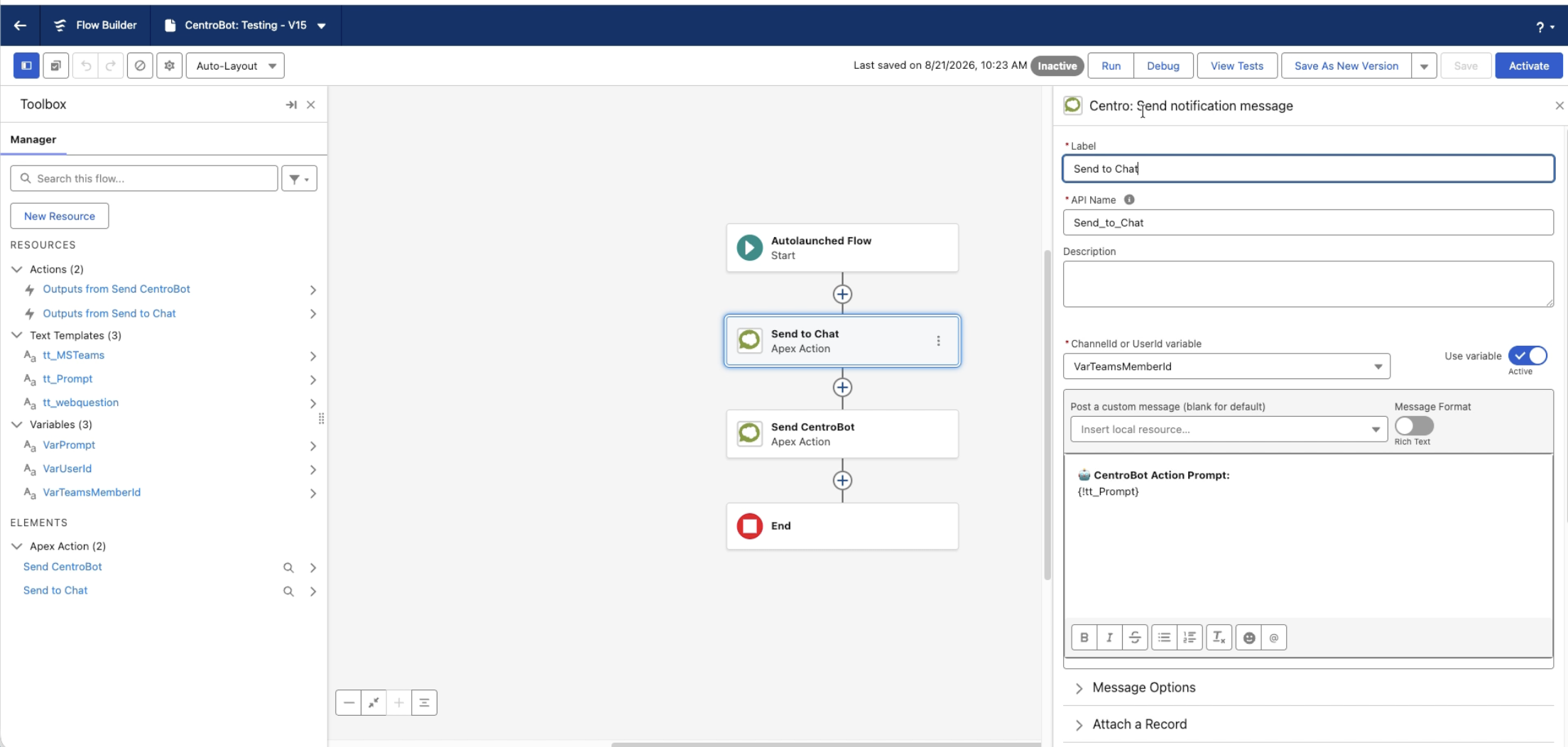
Step 1: Create Your Salesforce Flow
Start by creating the Salesforce Flow that will initiate the Action Prompt.
The Action Prompt can be initiated from several types of flows depending on your use case:
Auto-Launched Flow — Useful for testing or when another process initiates the Flow.
Record-Triggered Flow — Useful when an action should occur after a Salesforce record is created or updated.
Scheduled Flow — Useful for proactive reminders, follow-ups, or scheduled tasks.
For example, a Record-Triggered Flow could send an Action Prompt to an Opportunity Owner whenever an Opportunity reaches a particular stage.
Step 2: Add a Centro Send Notification Element
Add the Centro Send Notification Flow Element.
This element allows you to send an introductory message to the user.
For example:
"This is a Centro Action Prompt. Please review the request below and respond to CentroBot to complete the task."
The notification can be customized to fit your process.
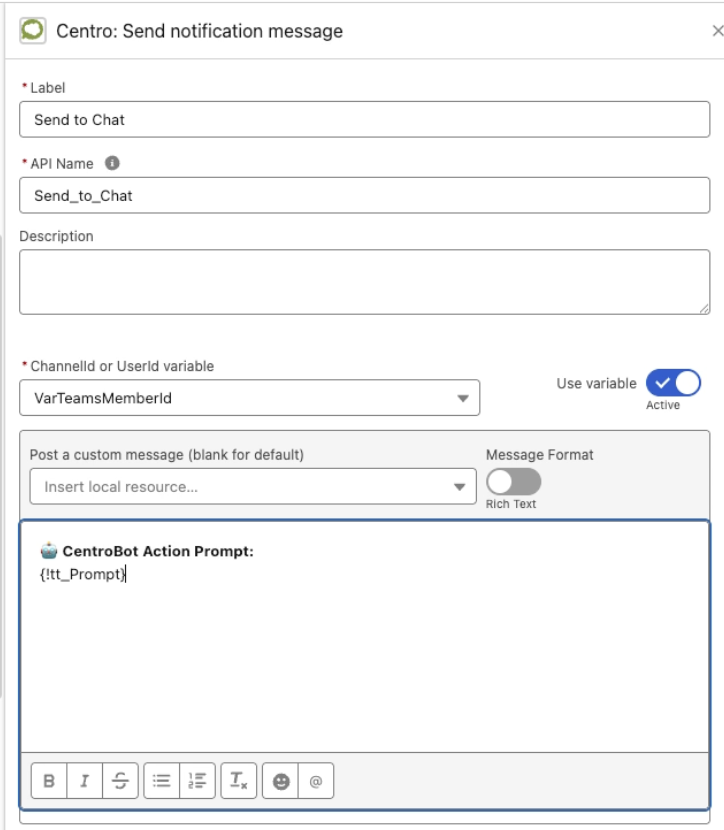
Why use a notification?
The notification provides context before the AI session begins. It can be shorter and more user-friendly than the full prompt while preparing the user for the action that CentroBot will ask them to complete.
Step 3: Add the Centro Start an AI Session Element
Next, add the Centro Start an AI Session Flow Element.
This element can support different AI experiences, including CentroBot and, where configured, Agentforce agents.
For a CentroBot Action Prompt, enable the CentroBot option.
You will need to provide two primary values:
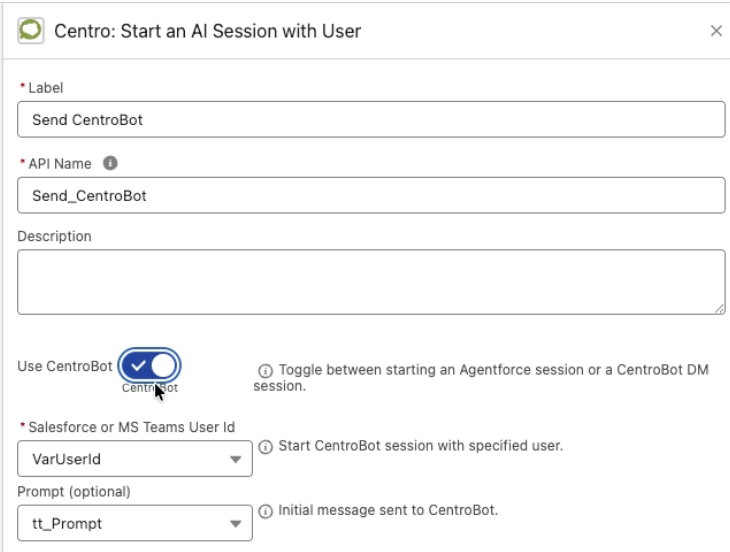
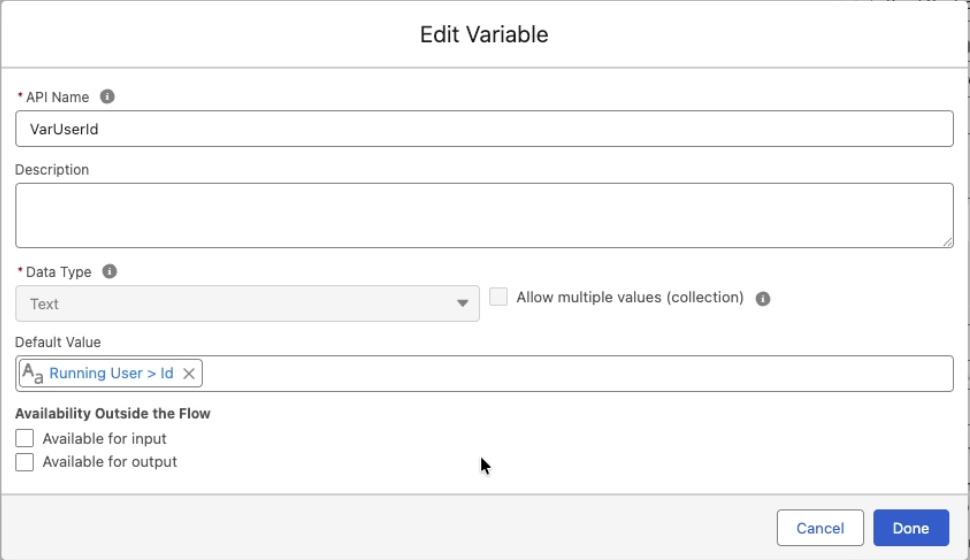
User ID
Provide the Salesforce User ID or Teams User ID for the person who should receive the Action Prompt.
The User ID can come from a variety of Salesforce sources.
For example:
The Opportunity Owner
A Case Owner
A specific Salesforce User
The User associated with the Flow
A User record retrieved earlier in the Flow
This allows the Flow to dynamically determine who should receive the message.
Prompt
The Prompt contains the instructions CentroBot should present to the user.
For example:
"Please send my open tasks to me and provide a summary of what needs to be completed."
The prompt can be created using a Salesforce Text Template, which makes it possible to dynamically insert Salesforce data.
Step 4: Add Salesforce Context to the Prompt
One of the most powerful capabilities of Action Prompts is the ability to provide Salesforce context to the AI session.
For example, your prompt could dynamically include:
User first and last name
Salesforce User ID
Opportunity information
Account information
Case information
Task information
Other records or variables available in the Flow
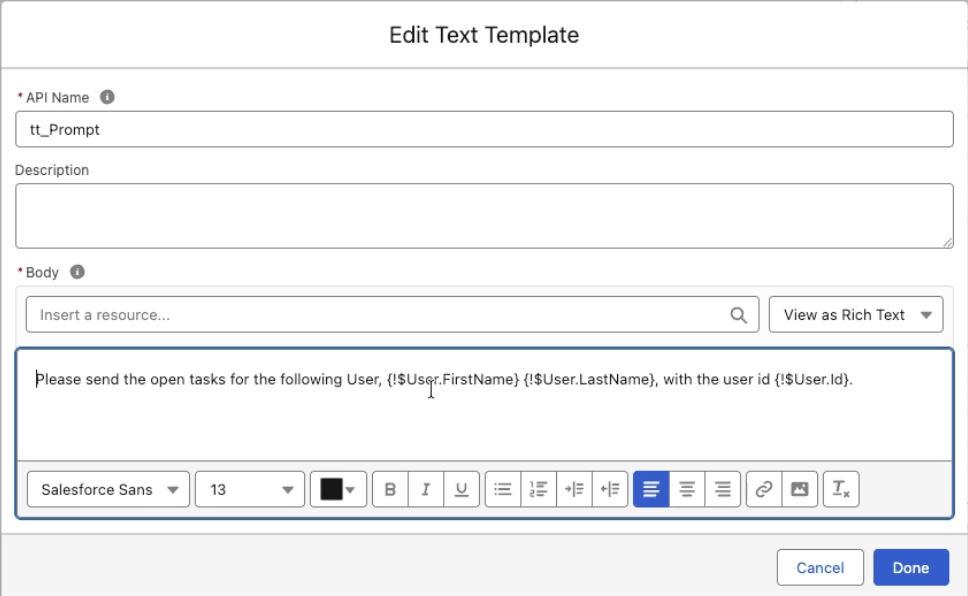
For example:
"Hi {!User.FirstName} {!User.LastName}, please review your open tasks and provide me with a summary of the tasks that need attention."
You can also pass the User ID into the prompt when additional context is needed by the MCP server to identify the appropriate Salesforce user.
This allows the Action Prompt to be much more than a static notification—it becomes a context-aware headless Salesforce interaction.
Step 5: Test the Flow
If you are using an Auto-Launched Flow for testing, select Run in Flow Builder.
Once the Flow executes:
The Centro notification is sent to the configured user.
The Action Prompt is sent to CentroBot.
CentroBot posts the prompt in Microsoft Teams.
The user can respond directly in Teams.
CentroBot can use the available Salesforce context and capabilities to help complete the requested task.
What the User Experiences
From the user's perspective, the interaction happens directly in Microsoft Teams.
The user receives the initial notification followed by the Action Prompt.
They can then respond using natural language rather than navigating through Salesforce screens.
For example:
CentroBot:
Please review your open Salesforce tasks and provide a summary of the items that need your attention.
User:
Show me the tasks that are due this week.
The user can continue the conversation and ask follow-up questions or complete the requested Salesforce action directly from Teams.
Using Action Prompts for Headless Salesforce
Centro Action Prompts are particularly useful for headless Salesforce use cases.
Instead of requiring users to open Salesforce and manually find the record or task they need to work on, Salesforce automation can proactively initiate the interaction.
A typical architecture looks like:
Salesforce Event or Schedule
↓
Salesforce Flow
↓
Centro Action Prompt
↓
CentroBot in Microsoft Teams
↓
Natural Language Interaction
↓
Salesforce Data / Action
This allows Salesforce to remain the system of record while Teams becomes the user-facing interface for completing work.
Example Use Cases
Opportunity Follow-Up
A scheduled Flow identifies Opportunities that need follow-up and sends the owner an Action Prompt asking them to review the deal and determine the next step.
Case Management
A Record-Triggered Flow can notify a Case Owner when a Case requires attention and allow the user to investigate or update the Case through CentroBot.
Task Management
A scheduled Flow can prompt users to review overdue tasks and ask CentroBot to summarize or help prioritize them.
Sales Coaching
A Flow can identify Opportunities that have stalled and prompt the Account Executive to review the deal, summarize risks, or prepare for the next customer interaction.
Best Practices
Keep the notification concise
Use the initial notification to explain what is happening. The detailed instructions should generally live in the Action Prompt.
Use dynamic context
Take advantage of Salesforce Flow variables and Text Templates to personalize the prompt and provide relevant Salesforce information.
Identify the correct user
Make sure the User ID passed to the Action Prompt corresponds to the intended recipient. This can be dynamically determined from the record being processed.
Be explicit in your prompts
Clearly describe the desired action and provide enough context for CentroBot to understand what the user needs to accomplish.
Use scheduled and record-triggered automation
Action Prompts become especially powerful when combined with Salesforce automation. Rather than waiting for a user to initiate an interaction, your Flow can proactively engage the user when an action is needed.
Summary
The Centro Action Prompt Flow Element provides a way to connect Salesforce automation with natural-language interactions in Microsoft Teams.
By combining Salesforce Flow, dynamic Salesforce context, CentroBot, and headless Salesforce capabilities, organizations can:
Proactively engage users
Surface Salesforce work at the right time
Reduce the need to navigate Salesforce directly
Allow users to interact with Salesforce using natural language
Automate follow-up and task-oriented workflows
Extend Salesforce experiences into Microsoft Teams
The result is a more proactive, conversational, and headless Salesforce experience where Salesforce can initiate the work and CentroBot helps the user complete it where they already work.