
Enable Centro in Microsoft Teams Private and Shared (External) Channels
Overview
By default, Centro can be used in Microsoft Teams private and shared (external) channels, but it must be explicitly enabled for each channel after it has been added. This is a Microsoft Teams security requirement for apps used in these channel types.
If Centro has already been installed but isn't available within a private or shared channel, follow the steps below to enable it.
Prerequisites
Centro has been installed in your Microsoft Teams tenant.
You have permission to manage the Microsoft Teams channel.
Enable Centro in a Private or Shared Channel
Open the Microsoft Teams channel where you want to use Centro.
Select the More options (...) menu next to the channel name.
Click Manage channel.
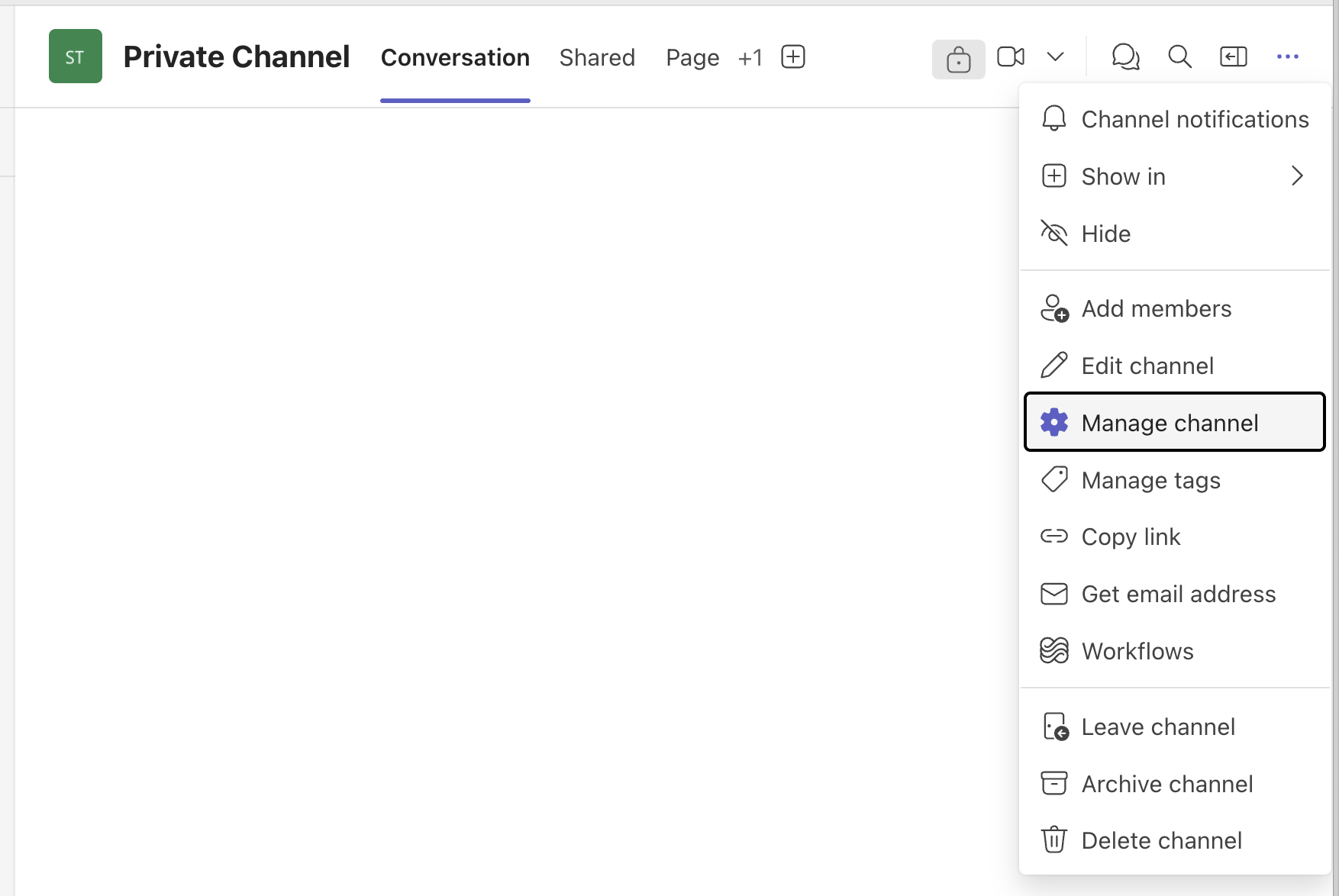
Select the Apps tab.
Locate Centro in the list of available apps.
If Centro is listed but not enabled, check the box next to Centro.
Click Add.
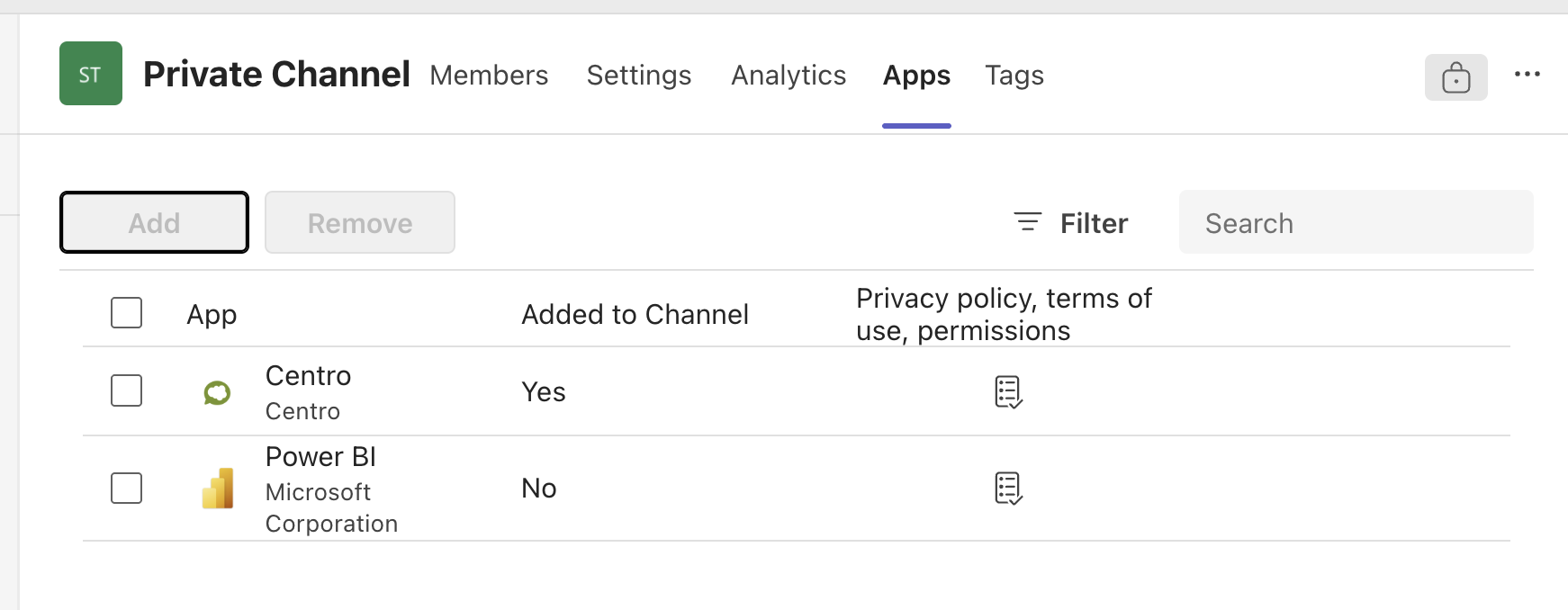
Once completed, Centro will be available for members of that private or shared channel.
Why Is This Required?
Microsoft Teams requires apps and bots to be explicitly enabled for private and shared (external) channels. Installing the app in your tenant or team alone does not automatically make it available within these channel types.
Verify the Configuration
After enabling Centro:
Open the private or shared channel.
Confirm that Centro commands and functionality are available.
If prompted, complete any required authentication based on your organization's Centro configuration.
Troubleshooting
Centro doesn't appear in the Apps list
Verify that the Centro app has been installed in your Microsoft Teams tenant.
Contact your Microsoft Teams administrator if the app is unavailable.
I don't see the "Manage channel" option
You may not have sufficient permissions to manage the channel. Contact the channel owner or your Teams administrator.
Centro still isn't available after adding it
Refresh Microsoft Teams or reopen the channel.
Verify that Centro was successfully added in the Apps tab.
If the issue persists, contact Centro Support.
Need Help?
If you continue experiencing issues enabling Centro in private or shared Microsoft Teams channels, please contact the Centro Support team for assistance.