
Add Microsoft Teams Chat Members Without Storing Teams User IDs
Overview
Centro allows you to create Microsoft Teams chats from Salesforce without requiring Microsoft Teams User IDs to be stored on Salesforce User records.
When creating a chat, Centro can automatically identify Microsoft Teams users by matching the Salesforce User Email Address to the user's email address in Microsoft Teams. This significantly simplifies setup and reduces ongoing administration, especially for organizations with rapidly growing teams.
Prerequisites
Before using this feature, ensure that:
Centro for Microsoft Teams is installed and configured.
Salesforce User records contain a valid email address.
The email address on the Salesforce User record matches the user's Microsoft Teams account email.
Note: If a Microsoft Teams User ID is present on the Salesforce User record, Centro will continue to use it. If it is not present, Centro will automatically fall back to matching by email address.
How It Works
The Create Chat Flow Action accepts a collection of Salesforce Users that should be added to the chat.
Instead of requiring Microsoft Teams User IDs, Centro now resolves users using either:
Microsoft Teams User ID (if available)
Email address matching (if the Teams User ID is blank)
This allows your flows to continue working even when new employees have not yet been synchronized with Microsoft Teams IDs.
Configure Your Flow
Step 1: Create a Collection Variable
Create a collection variable that will contain the users you want to add to the chat.
This collection can be populated using:
Salesforce User lookups
Record relationships
Flow logic
Hard-coded user references (if appropriate)
Step 2: Populate the Collection
Use an Assignment element to add users to your member collection.
You can add users one at a time or dynamically as your flow executes.
Examples include:
Opportunity Owner
Account Executive
Customer Success Manager
Support Engineer
Any additional Salesforce User Lookup
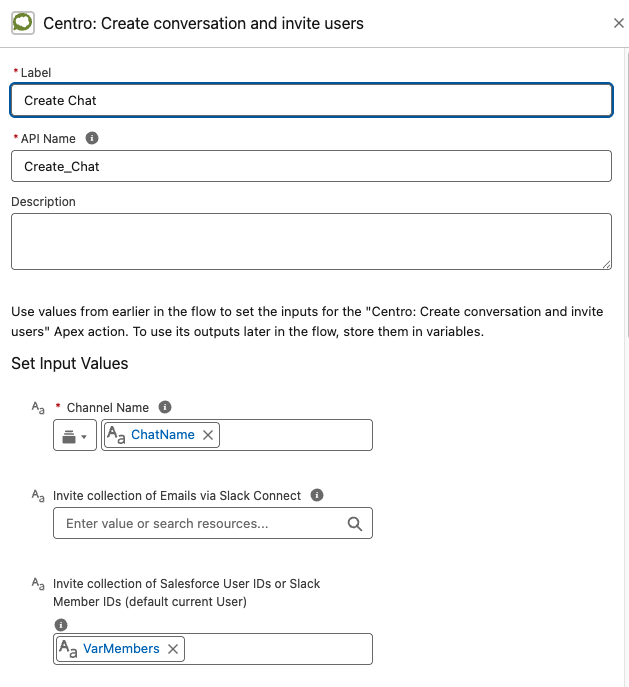
Step 3: Pass the Collection to the Create Chat Action
In the Create Chat Flow Action:
Specify the Chat Name.
Pass your populated member collection into the Member User Collection input.
Centro will automatically resolve each user and add them to the Microsoft Teams chat.
Benefits
Using email-based user matching provides several advantages:
No need to maintain Microsoft Teams User IDs.
Simplifies onboarding of new employees.
Reduces administrative overhead.
Supports dynamic chat creation for growing organizations.
Makes Salesforce Flows easier to build and maintain.
Best Practices
Keep Salesforce User email addresses synchronized with Microsoft Teams.
Build member collections dynamically whenever possible instead of hard-coding users.
Reuse collection variables across multiple chat creation flows for consistency and easier maintenance.
Troubleshooting
Users are not added to the chat
Verify the following:
The Salesforce User has a valid email address.
The email address exactly matches the user's Microsoft Teams account.
The user has access to Microsoft Teams.
The member collection is being passed into the Create Chat action.
Additional Information
This enhancement is particularly valuable for organizations experiencing rapid growth, where manually maintaining Microsoft Teams User IDs for every Salesforce User is impractical. By leveraging email address matching, Centro enables scalable, low-maintenance automation for Microsoft Teams chat creation directly from Salesforce.