
Agentforce SDO Demo Quickstart
The Centro demo environment for Agentforce & Microsoft Teams allows connecting a demo Microsoft Teams Tenant that Centro manages to any SDO org. While the Centro integration allows for deep and robust Agentforce + Teams features (like External Agents and @mentionable agents), this guide is meant for Agentforce Employee agents working in a DM in Teams. If you need a more sophisticated use case built out, please contact our team for assistance.
Your Centro representative will have assigned you a Microsoft Teams user and password.
To connect the Microsoft Teams user you were assigned to your SDO:
1) Open Teams in a browser, then click Sign In and use the credentials you were assigned: https://www.microsoft.com/en-us/microsoft-teams/log-in
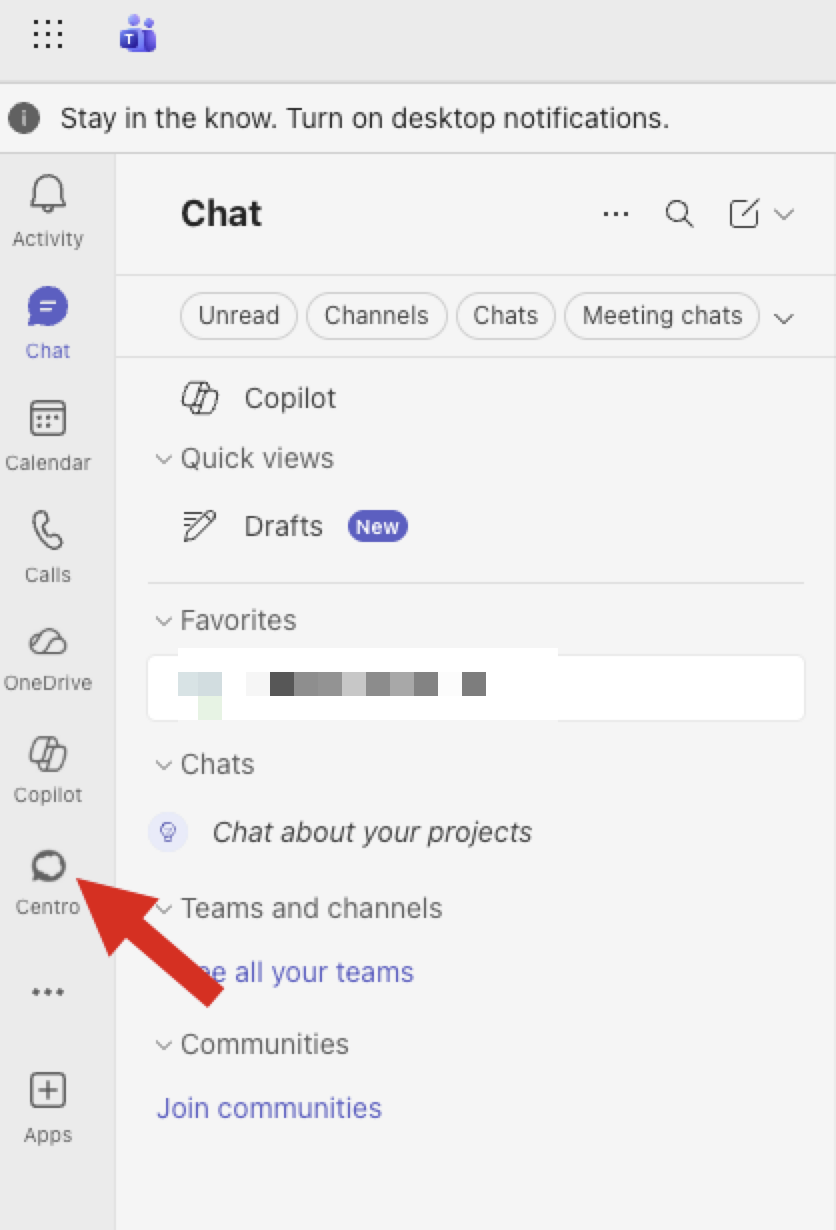
Navigate to the Centro app (it should be Pinned to the navigation bar):
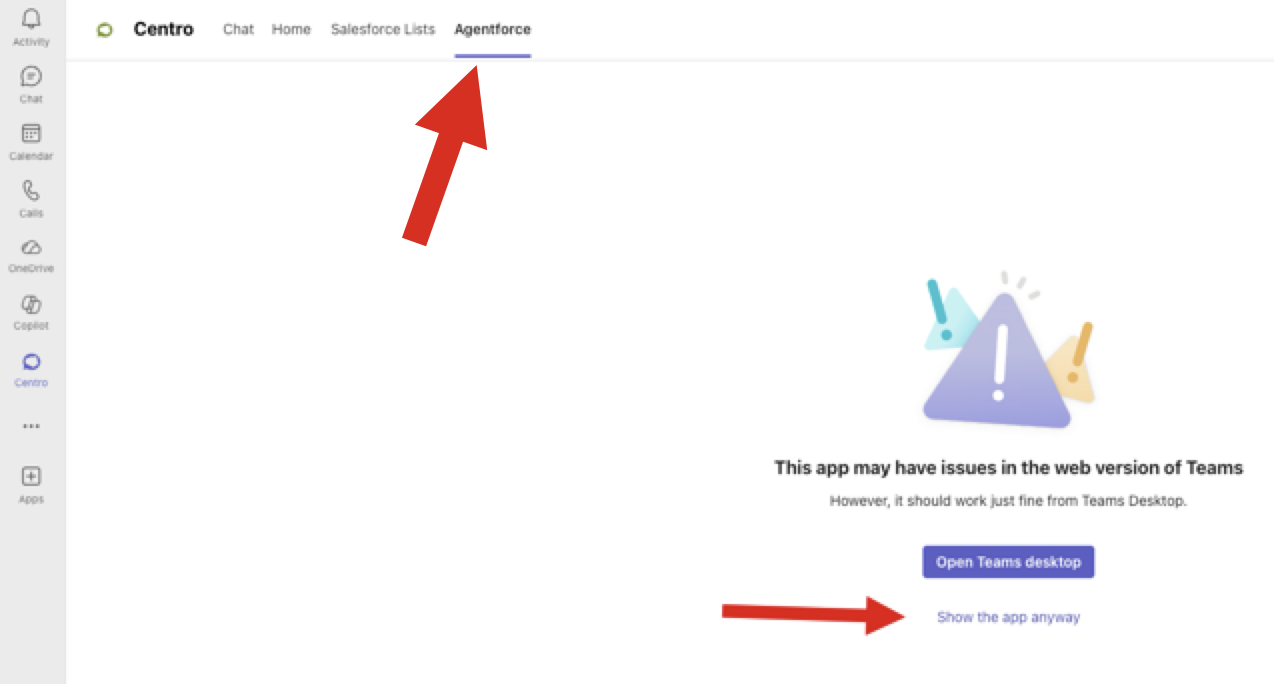
2) Go to the Agentforce Tab. While this tab may already be connected to another demo org, please proceed to override this connection. If you're opening this in a Private browser, you may see an error. Press Continue to proceed:
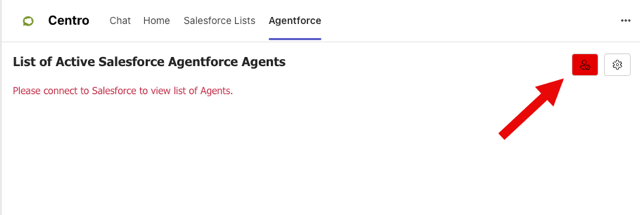
3) Click on the Agent connection button. It may be Red or Clear, click regardless:
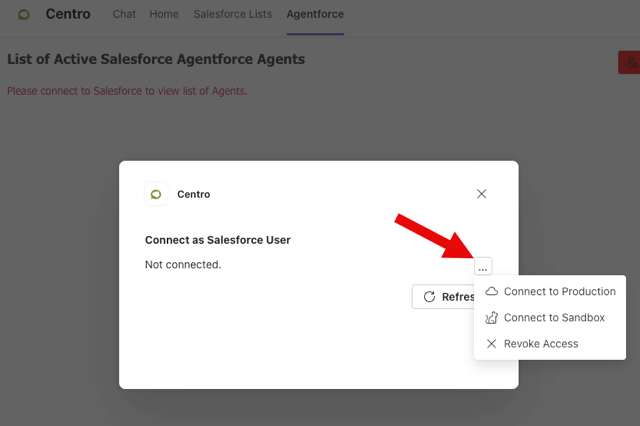
4) In the Connection Screen, click the 3 Dots, then Connect to Production and enter your SDO credentials:
5) You should see a list of active Employee Agents. Click on one, then click Send DM to start using!