
How to Archive Microsoft Teams Channels Using the Centro Salesforce Flow Element
Centro enables you to archive Microsoft Teams channels directly from Salesforce using Salesforce Flow. This allows teams to automatically archive channels when a process is completed (for example, when a case is closed or a project ends).
This article explains how to configure a Flow that archives a Microsoft Teams channel using the Centro Archive Conversation Flow Element.
Overview
With Centro, you can archive or unarchive a Microsoft Teams channel by passing the following information to the Archive Conversation Flow element:
Channel ID
Microsoft Team (Workspace) ID
These values are typically retrieved from the Linked Conversation object in Salesforce.
This action can be used in multiple Flow types, including:
Record-Triggered Flow (Run onAdd Asynchronous Path)
Screen Flow
Autolaunched Flow
Example
Flow to Archive a Teams Channel
The following example demonstrates an Autolaunched Flow that archives a Microsoft Teams channel.
Step 1: Retrieve the Linked Conversation Record
Add a Get Records element to retrieve the Linked Conversation associated with the Salesforce record.
Configuration:
Object: Linked Conversation
-
Filter:
Linked Record=RecordId(or the triggering record in a record-triggered flow)
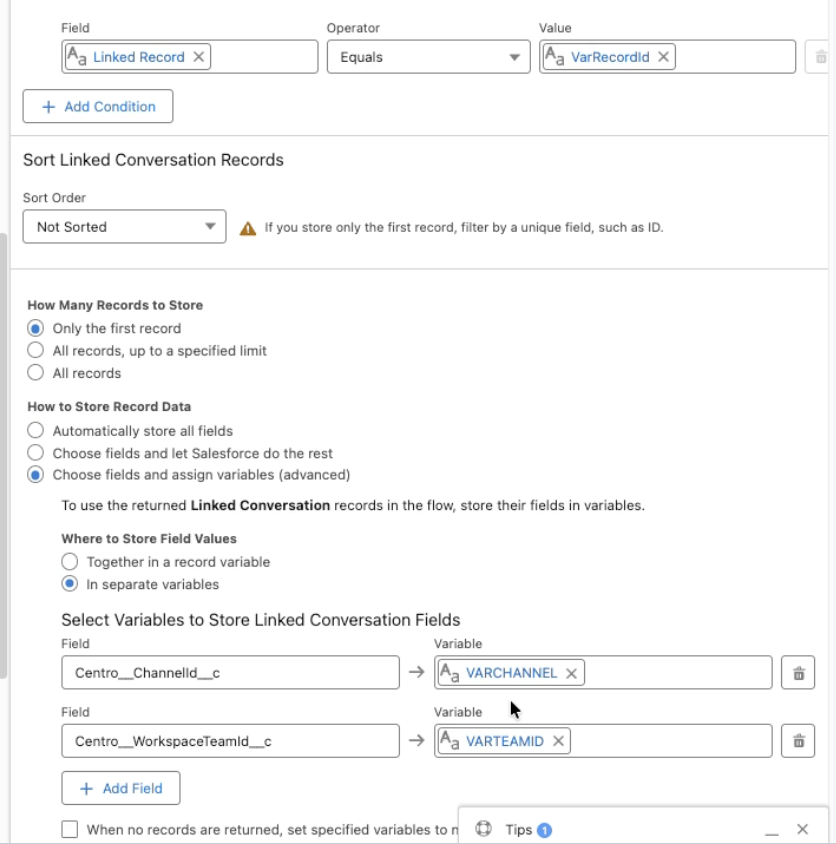
Store the following fields in variables:
Field |
Variable |
|---|---|
Channel ID |
|
Workspace Team ID |
|
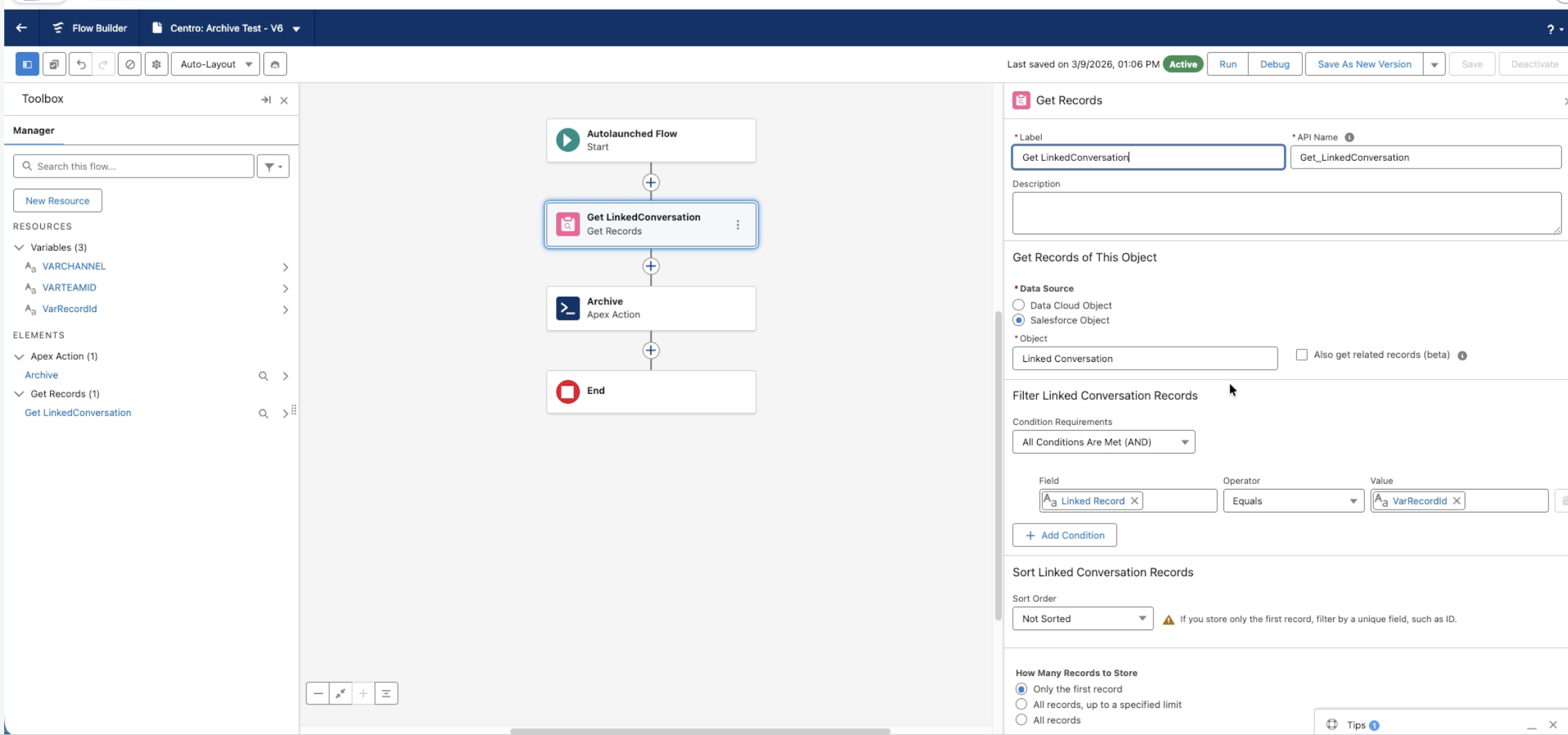
Both variables should be Text variables.
This step ensures the Flow has the required Microsoft Teams identifiers needed to archive the channel.
Step 2: Add the Archive Conversation Flow Element
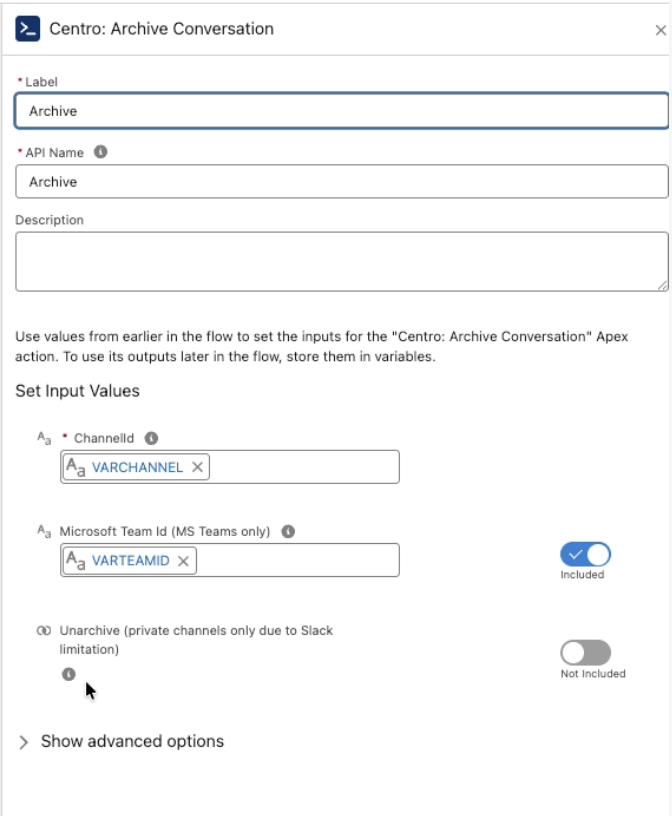
Next, add the Centro Archive Conversation Flow element.
Populate the following inputs:
Field |
Value |
|---|---|
Channel ID |
|
Microsoft Team ID |
|
Unarchive |
Leave unchecked (default) |
Leaving Unarchive unchecked tells Centro to archive the channel.
Step 3: Save and Activate the Flow
Once the Flow is configured:
Save the Flow.
Activate it.
Connect it to your automation (such as a record-triggered event).
When the Flow runs, Centro will archive the specified Microsoft Teams channel.
Unarchiving a Channel
To unarchive a Teams channel, use the same Flow element but enable the Unarchive option.
Configuration:
Field |
Value |
|---|---|
Channel ID |
|
Microsoft Team ID |
|
Unarchive |
|
Setting Unarchive = True reopens the archived Microsoft Teams channel.
Example Use Cases
Common scenarios for archiving Teams channels include:
Archiving channels when a Salesforce Case is closed
Closing collaboration spaces when a project is completed
Cleaning up channels when a deal is closed
Automatically managing lifecycle of customer support conversations