
Resetting an @Mentionable Agent in Microsoft Teams with Centro
This article explains how to reset and reassociate an @mentionable Agent Force employee agent to a different agent within a specific Microsoft Teams team using the Centro app.
Overview
When using an @mentionable agent in Microsoft Teams, each Teams user is associated with one Agent Force agent per team. If you need to change which agent the user is linked to, you can reset the association directly from the Teams channel.
When to Use This
You may want to reset an @mentionable agent when:
You want the agent user to represent a different Agent Force agent
You are testing multiple agents in the same team
The agent was initially configured incorrectly
Step-by-Step Guide
Step 1: Navigate to the Team and Channel
Open Microsoft Teams.
Navigate to the team and channel where the @mentionable agent is currently configured.
Remember: agent associations are managed on a per-team basis.
Step 2: Reset the Agent Association
In the channel, @mention the agent user.
Enter the reset command.
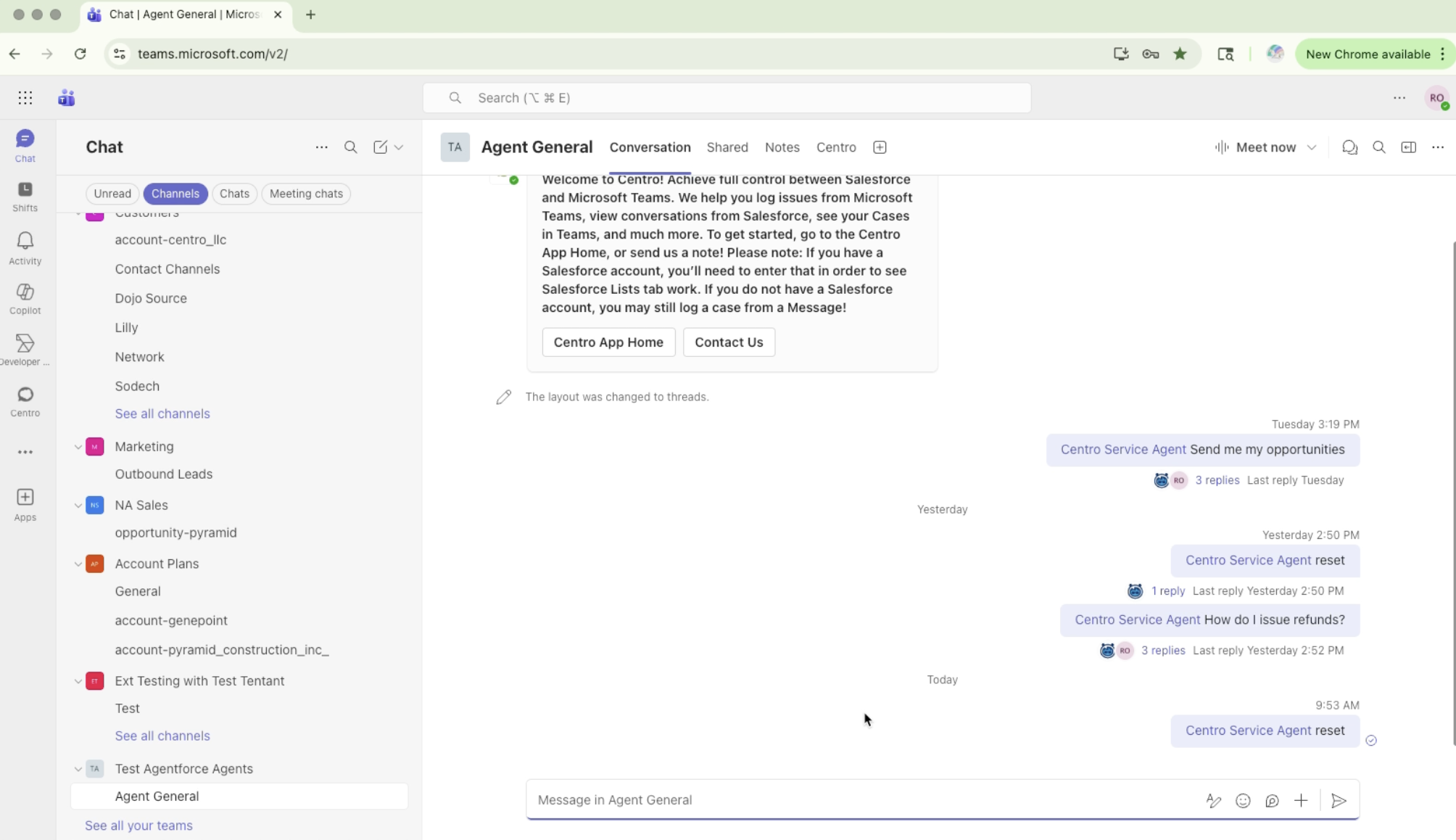
This command prompts Centro to begin the reassociation process.
Step 3: Review Centro Notifications
After issuing the reset command:
You will receive one or more Centro notifications.
These notifications indicate that the agent user needs to be reconfigured.
Step 4: Reconfigure the Agent Association
Open your Centro direct messages (DMs).
Locate the notification asking you to reconfigure the @mentionable agent.
Click Set up.
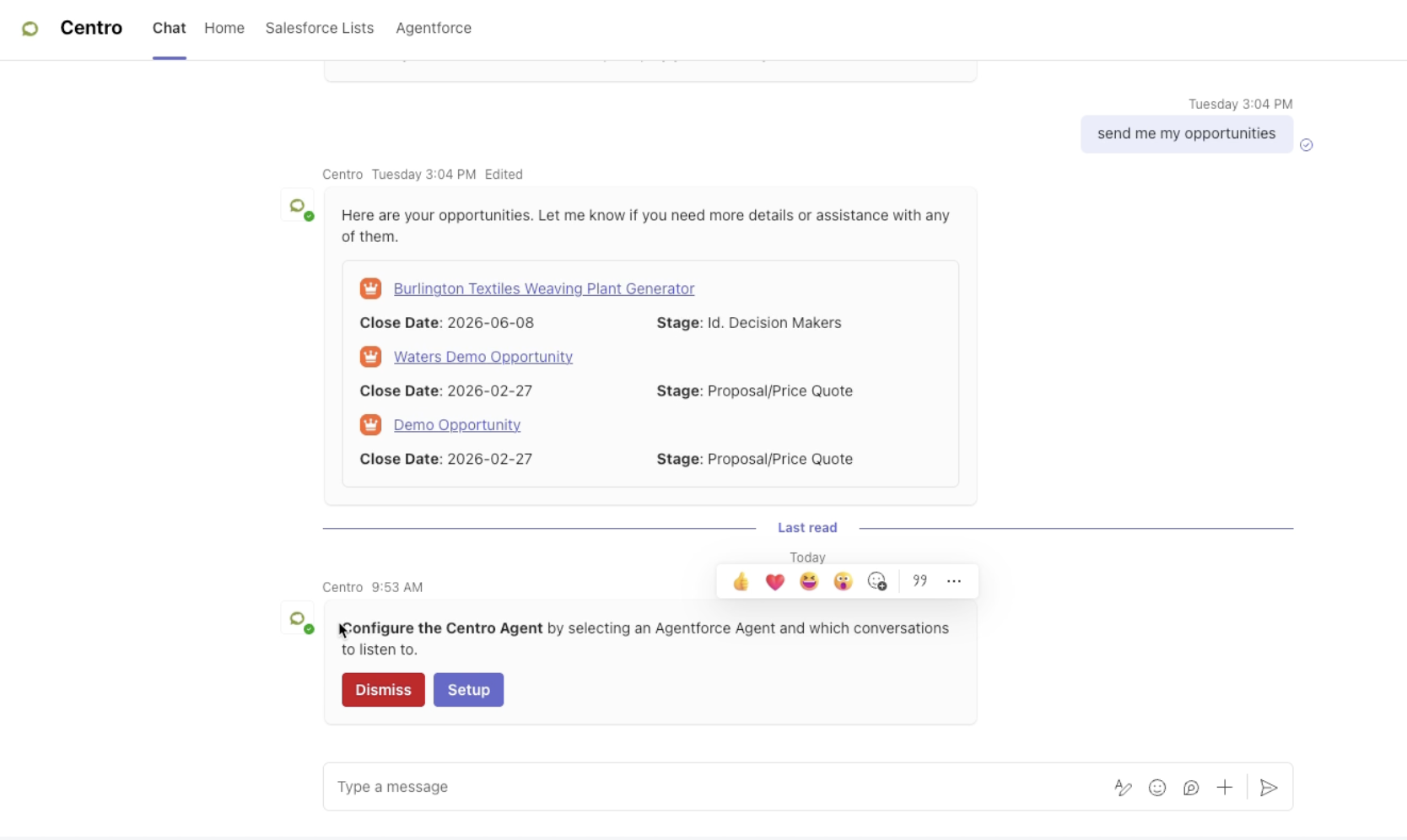
This starts the same setup flow used during the initial configuration.
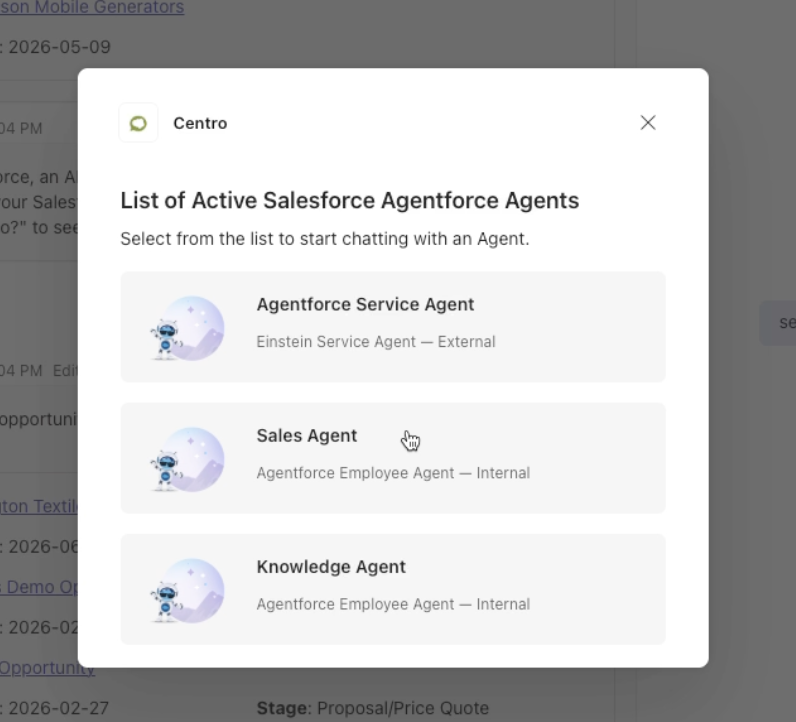
Step 5: Select the New Agent and Channel
Choose the Agent Force agent you want to associate with the user.
Select the channel where the agent should respond.
Click Save.
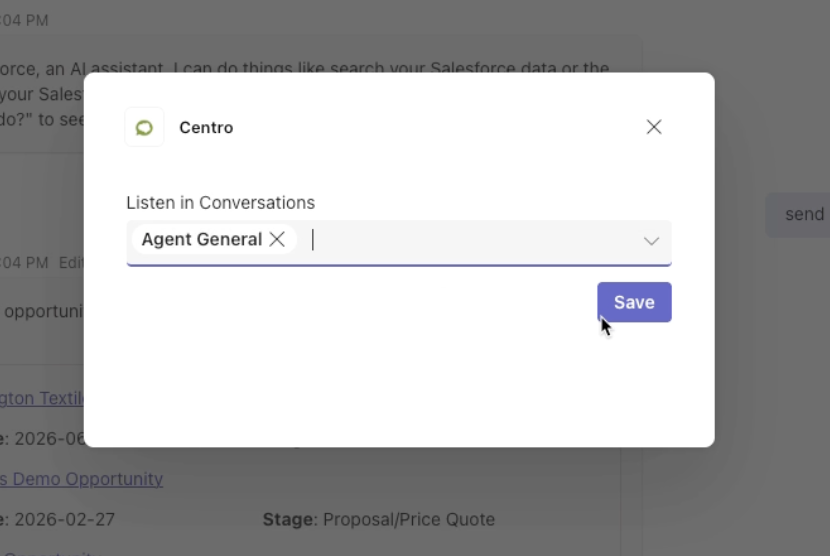
The user is now re-associated with the selected agent for that team.
Summary
By resetting an @mentionable agent, you can:
Change which Agent Force agent a Teams user represents
Reuse the same agent user across different scenarios
Quickly update configurations without recreating teams or users
Agent associations are handled per team, and resetting follows the same simple setup process as the original configuration.
If you have any questions or need assistance, please reach out to the Centro support team.