
Use Agentforce Employee Agents with @mentionable users in Microsoft Teams Channels
This article explains how to connect Agent Force employee agents to a dedicated Microsoft Teams user so they can participate in channels and threaded conversations using the Centro app.
Overview
This is the final method for enabling Agent Force employee agents to interact in Microsoft Teams. In this approach, a licensed Microsoft Teams user is linked to an Agent Force agent, allowing the agent to respond when the user is @mentioned in channels or chats.
Prerequisites
Before you begin, ensure that:
The Centro app is installed in Microsoft Teams.
Agent Force employee agents are already created in Salesforce.
You can create and manage users and teams in Microsoft Teams.
You have access to the Agent Force tab in the Centro app.
Step-by-Step Guide
Step 1: Create a Dedicated Microsoft Teams User
In the Microsoft Teams Admin Center, create a new user.
Assign the user a full Microsoft Teams license.
This user will represent the Agent Force agent inside Microsoft Teams.
Step 2: Authorize the User in Centro
Navigate to the Centro app.
Go to the Agent Force tab.
Click the gear icon to access settings.
-
In the User-Based Agent section, select Authorize Centro.
Sign in as the newly created Teams user to authenticate it with Centro.
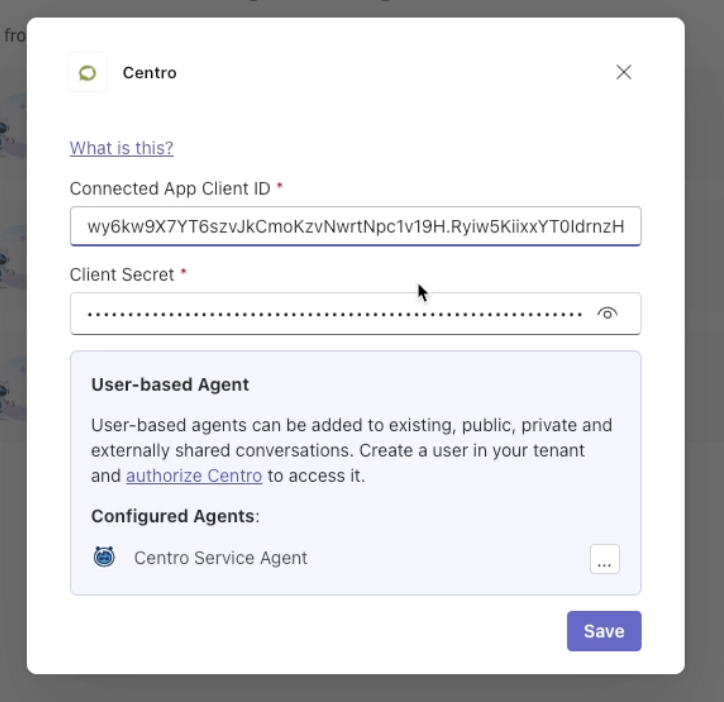
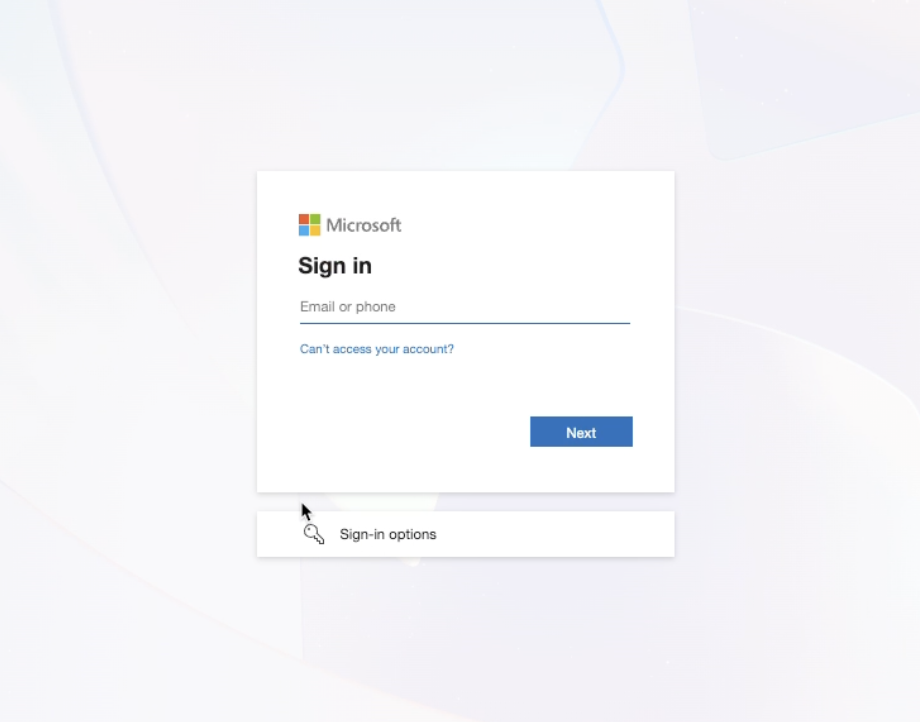
Once completed, the user will appear as ready to be configured for agents.
Step 3: Associate the User with an Agent Force Agent
After authorization:
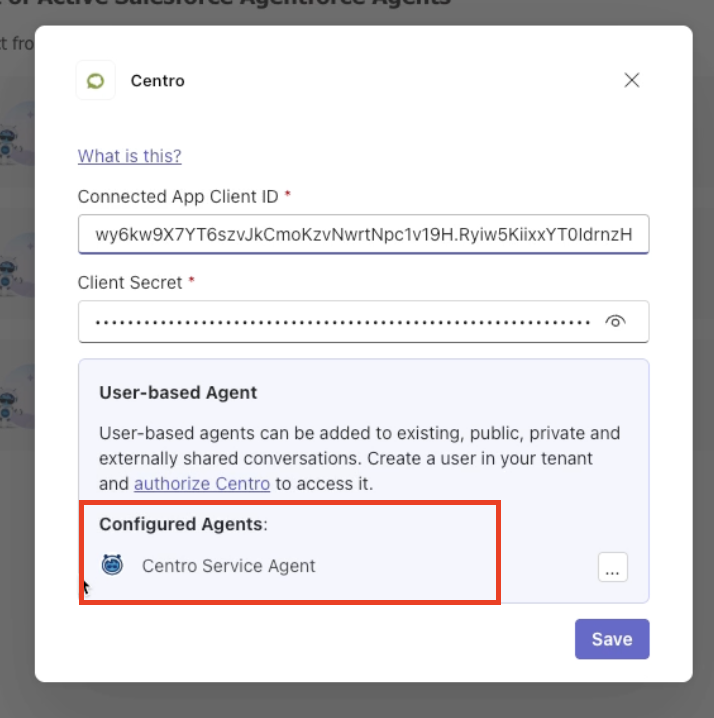
Configure the Teams user to behave as a Salesforce Agent Force agent within Microsoft Teams.
This configuration enables the user to respond in channels and chats.
Step 4: Create or Select a Microsoft Teams Team and Channel
Navigate to Teams in Microsoft Teams.
-
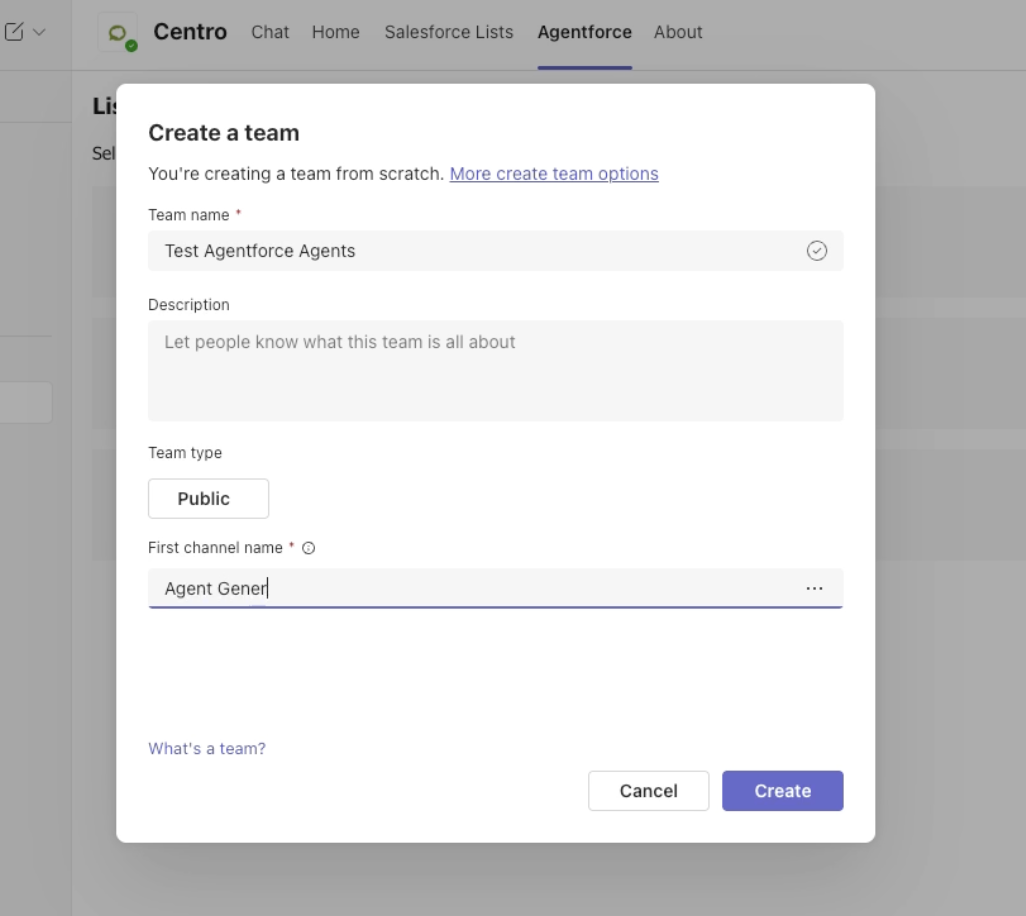
Create a new team or select an existing one.
Example team name: Testing Agent Force Agents
Choose whether the team is public or private.
-
Create a channel within the team.
Example channel name: Agents
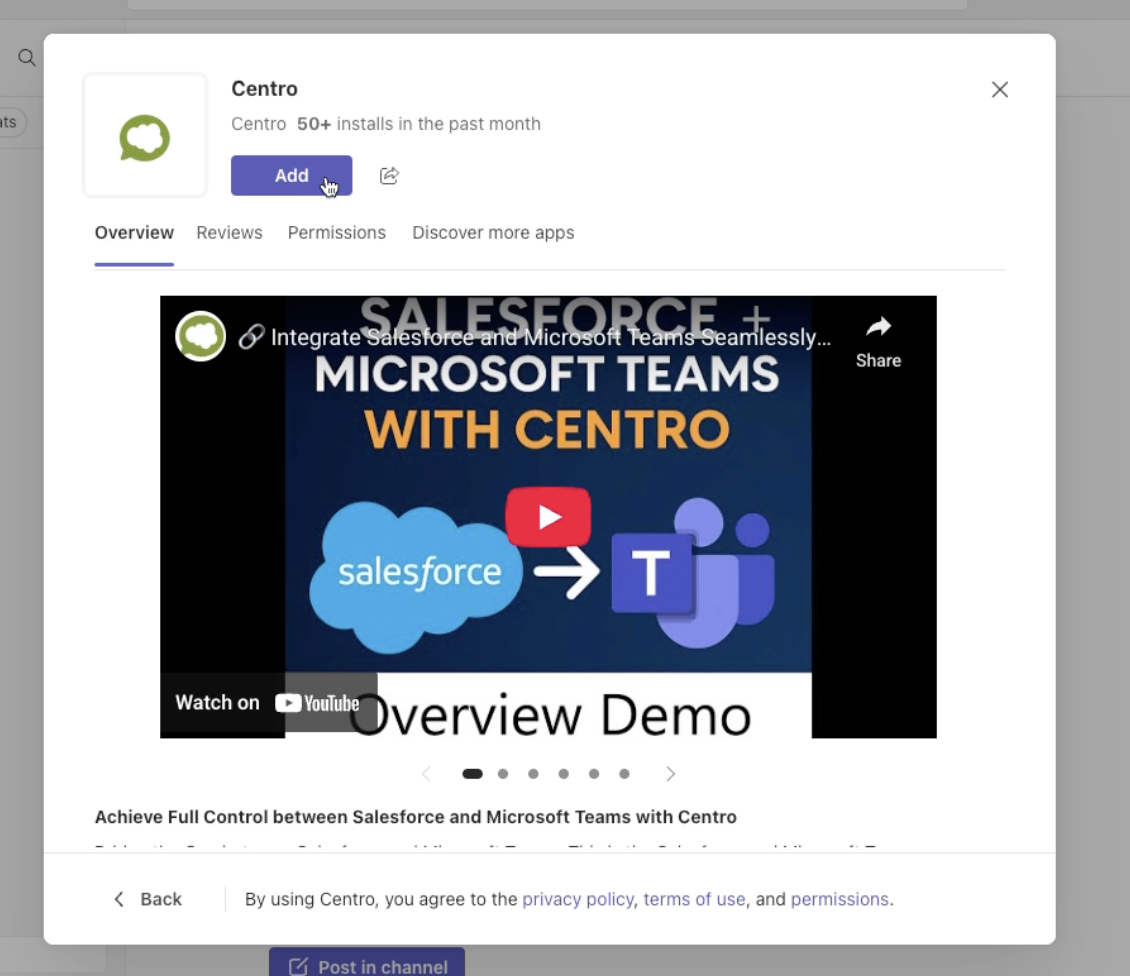
Step 5: Add the Centro App to the Team and Channel
In the channel, click the plus (+) icon.
Select Apps.
Search for Centro.
Add the Centro app to the team and channel.
Step 6: Update Channel Settings (Optional but Recommended)
To improve conversations:
Open Manage Channel.
Change the conversation setting from Posts to Threads.
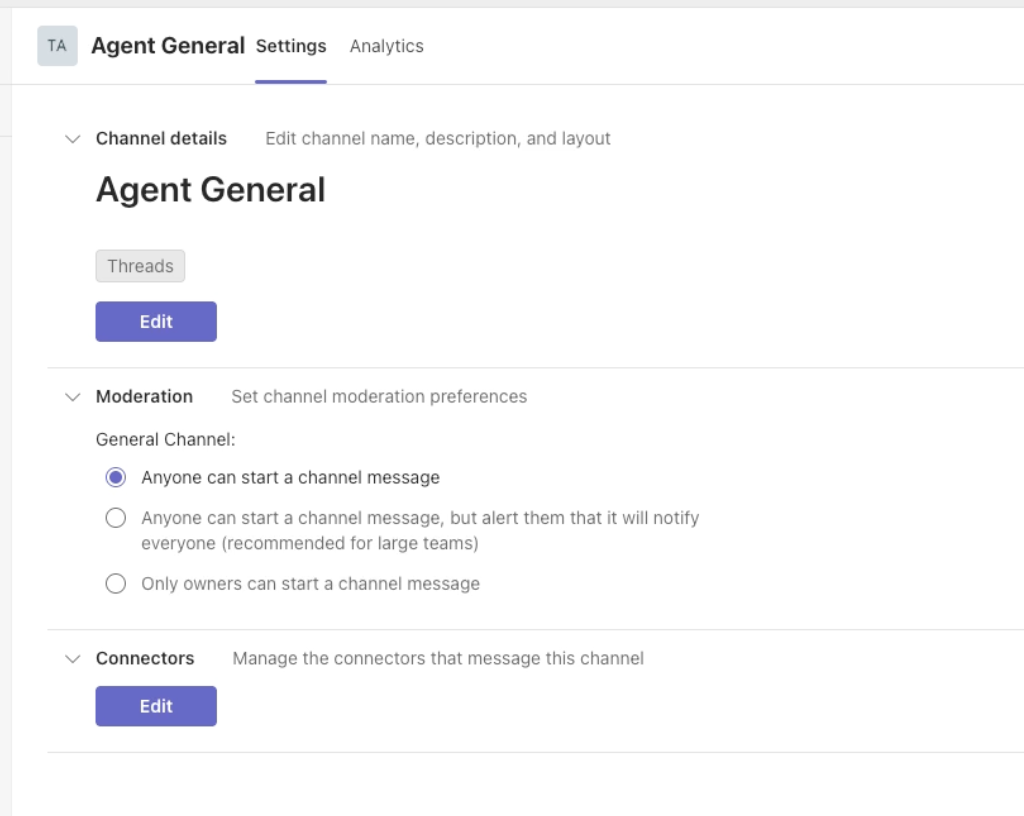
This allows the agent to respond in threaded conversations.
Step 7: Add the Agent User to the Team and Channel
Go to Manage Team or Add Members.
Add the newly created Teams user (for example, Centro Service Agent).
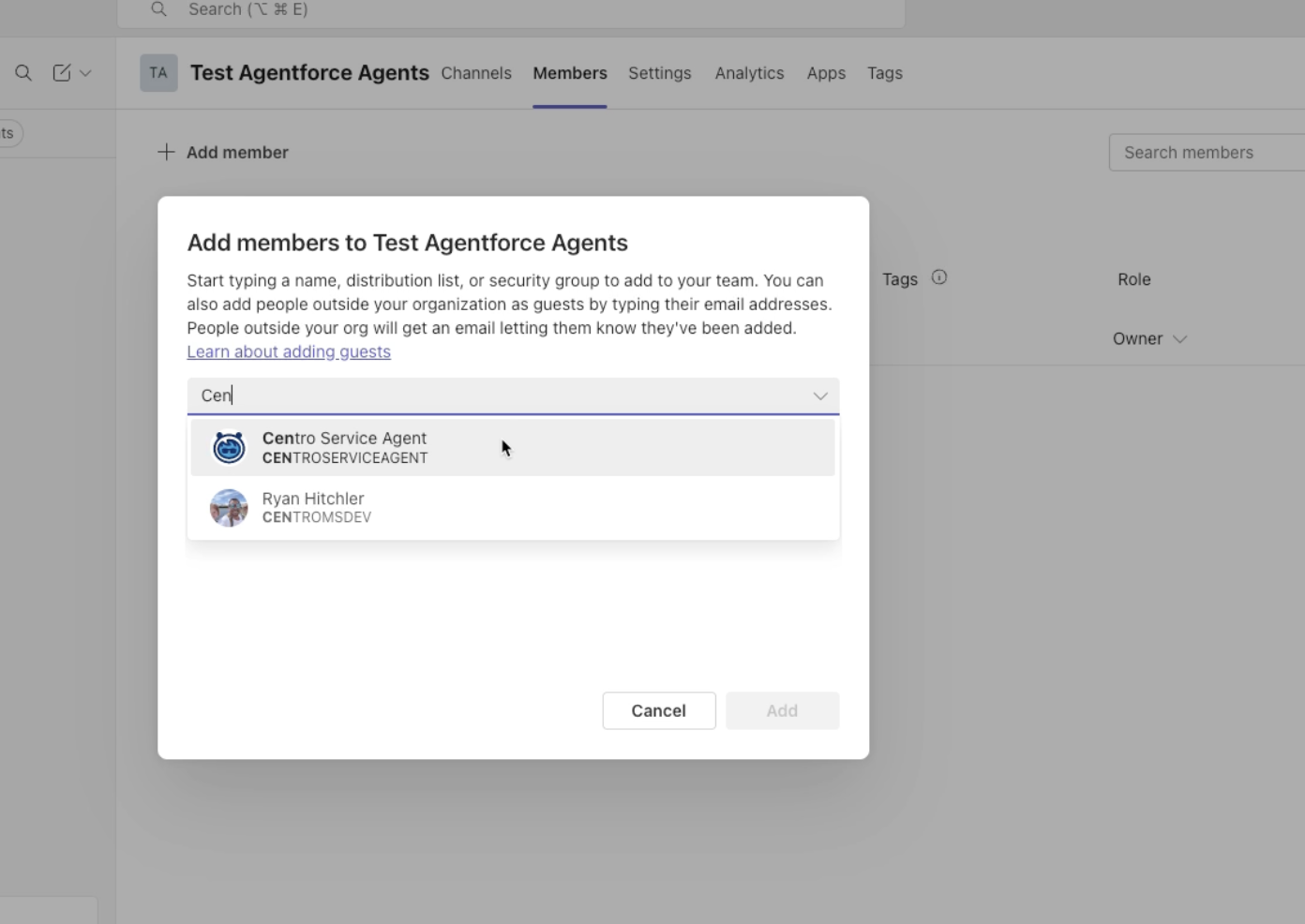
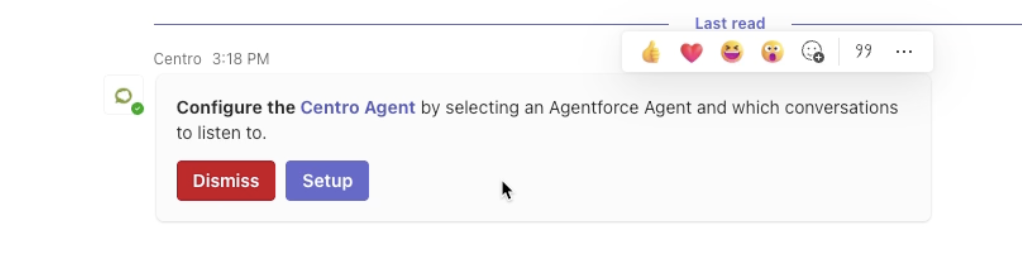
Once added, you will receive a notification in your Centro DM prompting you to configure the agent.
Step 8: Link the User to an Agent Force Agent
Open the notification in your Centro DM.
Click Set up.
-
Select the Agent Force agent to associate (for example, Sales Agent).
Choose the channel where the agent should respond.
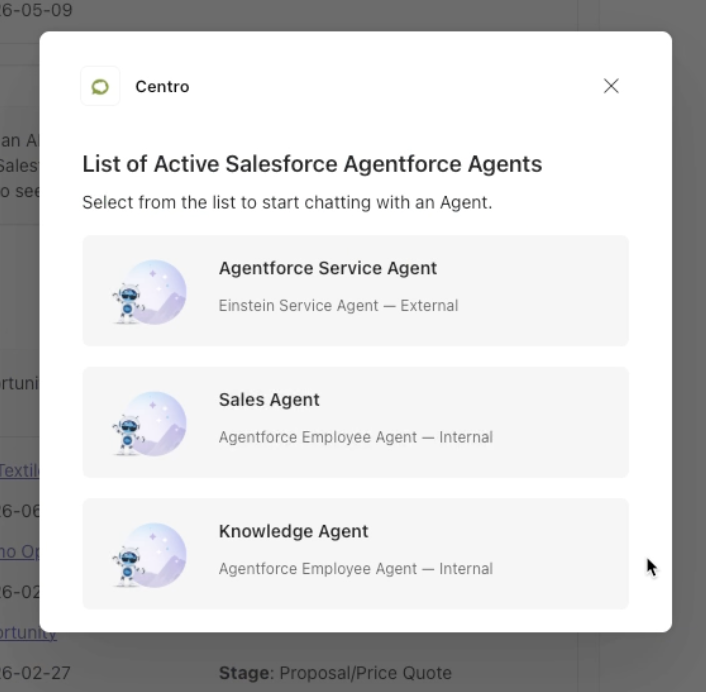
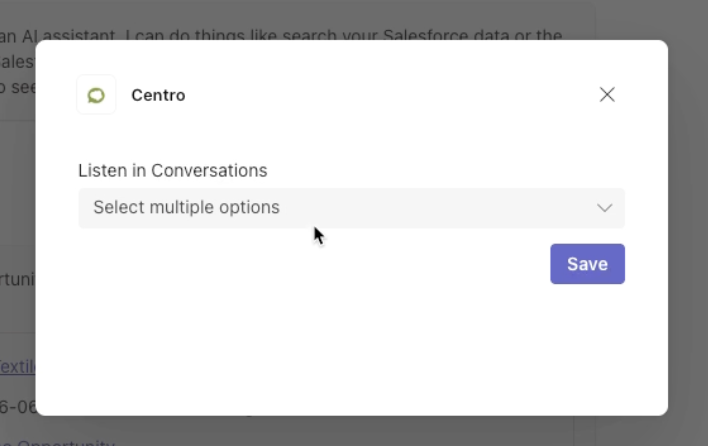
Click Save.
The Teams user is now linked to the selected Agent Force agent.
Step 9: Interact with the Agent in a Channel
Navigate back to the configured channel.
@Mention the agent user.
-
Ask a question.
Example: Send me my opportunities
The agent will:
Respond in a thread
Use your Salesforce authentication
Return data based on the user who mentioned the agent
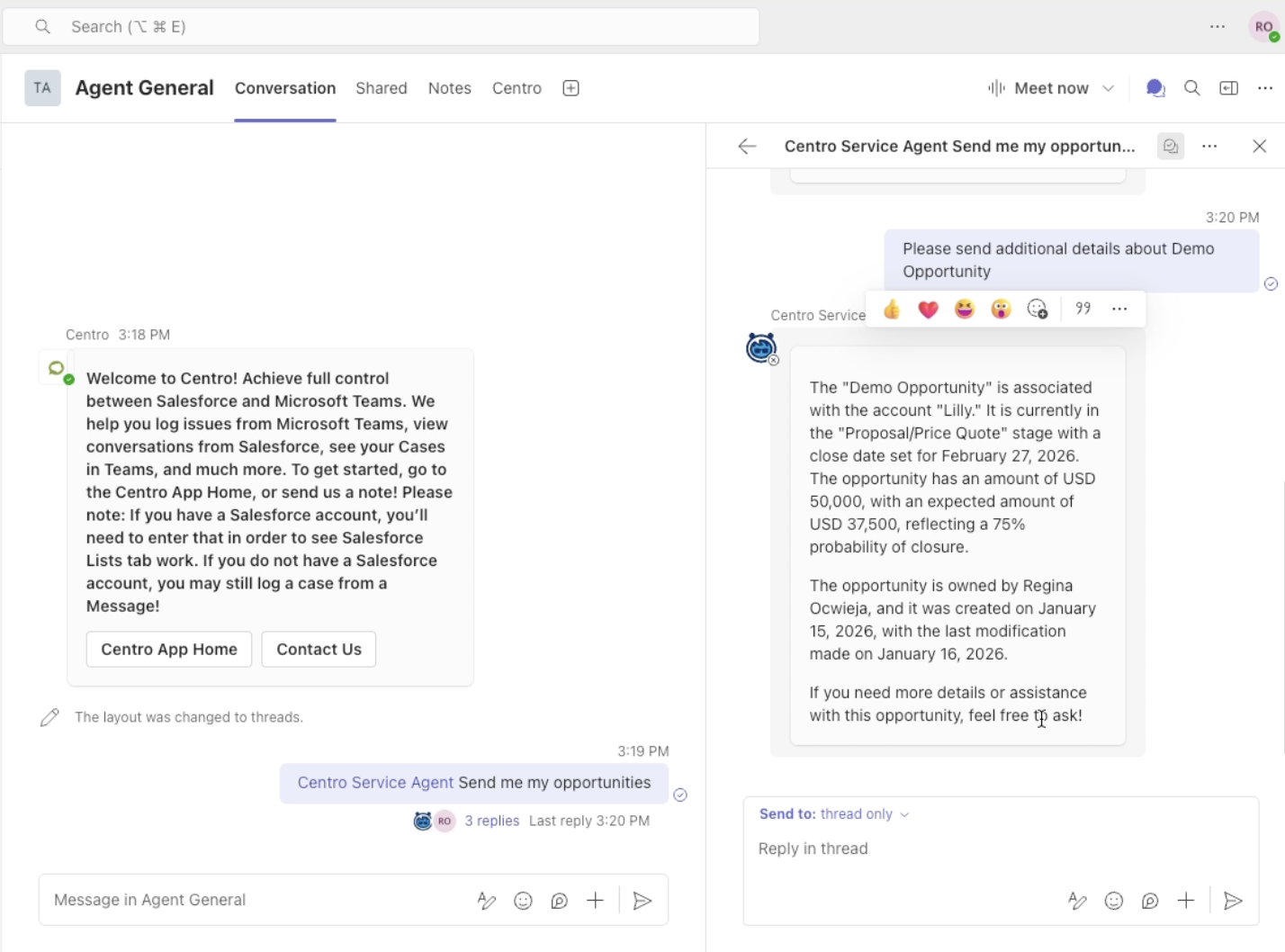
Once the thread has started, you can continue the conversation without mentioning the User again.
Step 10: Validate Agent Responses
To confirm correct behavior:
Open the Agent Force Agent Builder in Salesforce.
Ask the same questions you asked in Microsoft Teams.
Compare the responses.
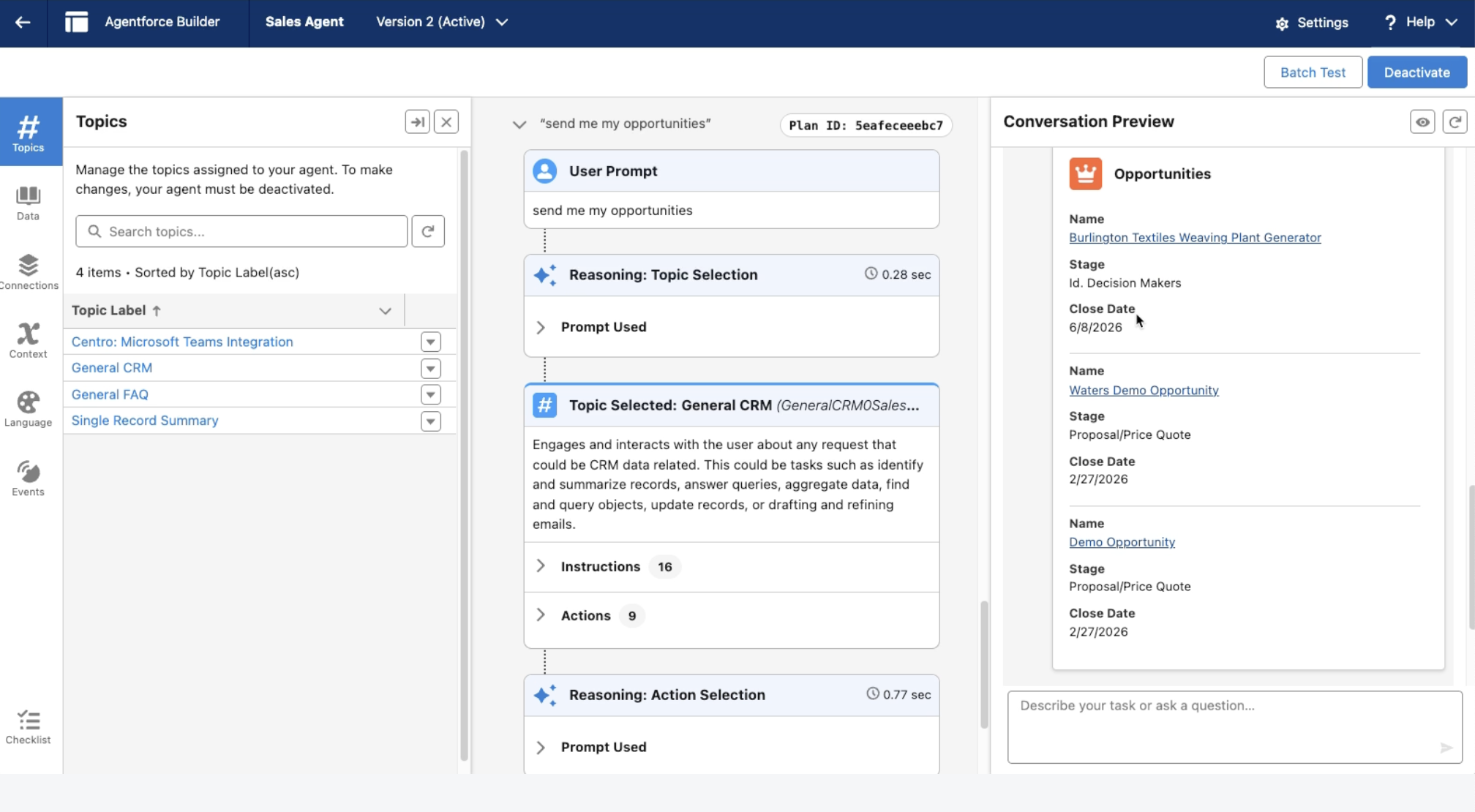
Matching responses confirm that the agent and Teams integration are functioning as expected.
Watch the Video
Summary
By linking a licensed Microsoft Teams user to an Agent Force agent, you can:
Enable agents to respond to @mentions in channels
Support threaded conversations without repeated app mentions
Authenticate directly to Salesforce per user
Validate behavior using the Agent Force Builder
These steps allow employee agents to operate naturally inside Microsoft Teams channels using Centro.
If you have any questions or need assistance, please reach out to the Centro support team.