
Use Employee Agents in Microsoft Teams Chats
This article walks you through how to test and validate employee agents in Microsoft Teams using the Centro app.
Prerequisites
Before you begin, make sure that:
The Centro application is installed in Microsoft Teams.
You have authenticated successfully in the AgentForce tab within the Centro app.
Step-by-Step Guide
Step 1: Open Centro in Microsoft Teams
Open Microsoft Teams.
Navigate to the Centro app.
Select the Agent Force tab.
Once authenticated, you will see a list of employee agents available for interaction.
Step 2: Verify Your Authentication
Check the authenticated user displayed in the Agent Force tab.
-
If no user is shown:
Click the three dots (•••) menu.
Select Sign in and complete authentication.
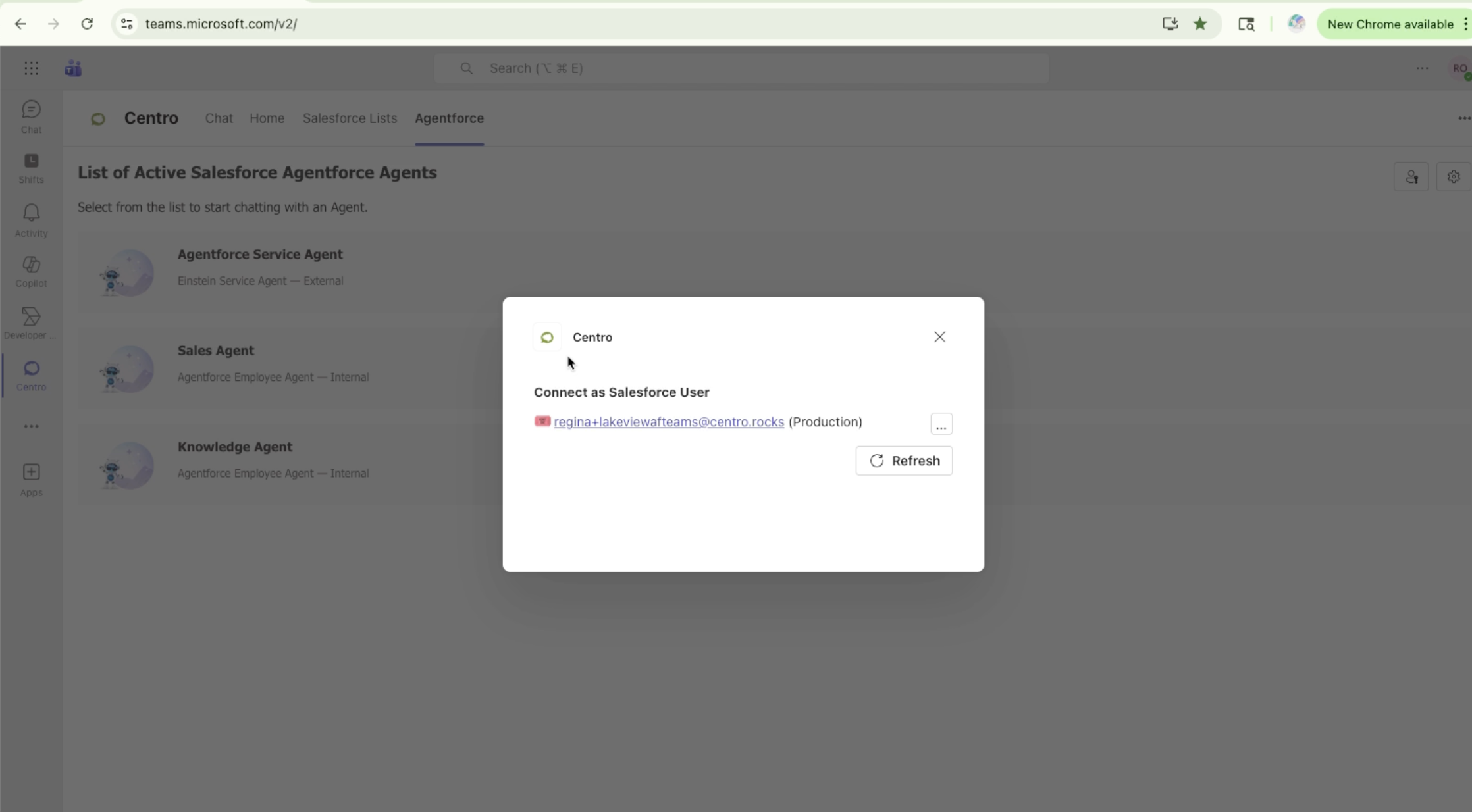
This ensures you are interacting with agents as the correct user.
Step 3: Select an Employee Agent
-
From the list of available agents, select the employee agent you want to test.
Example: Sales Agent
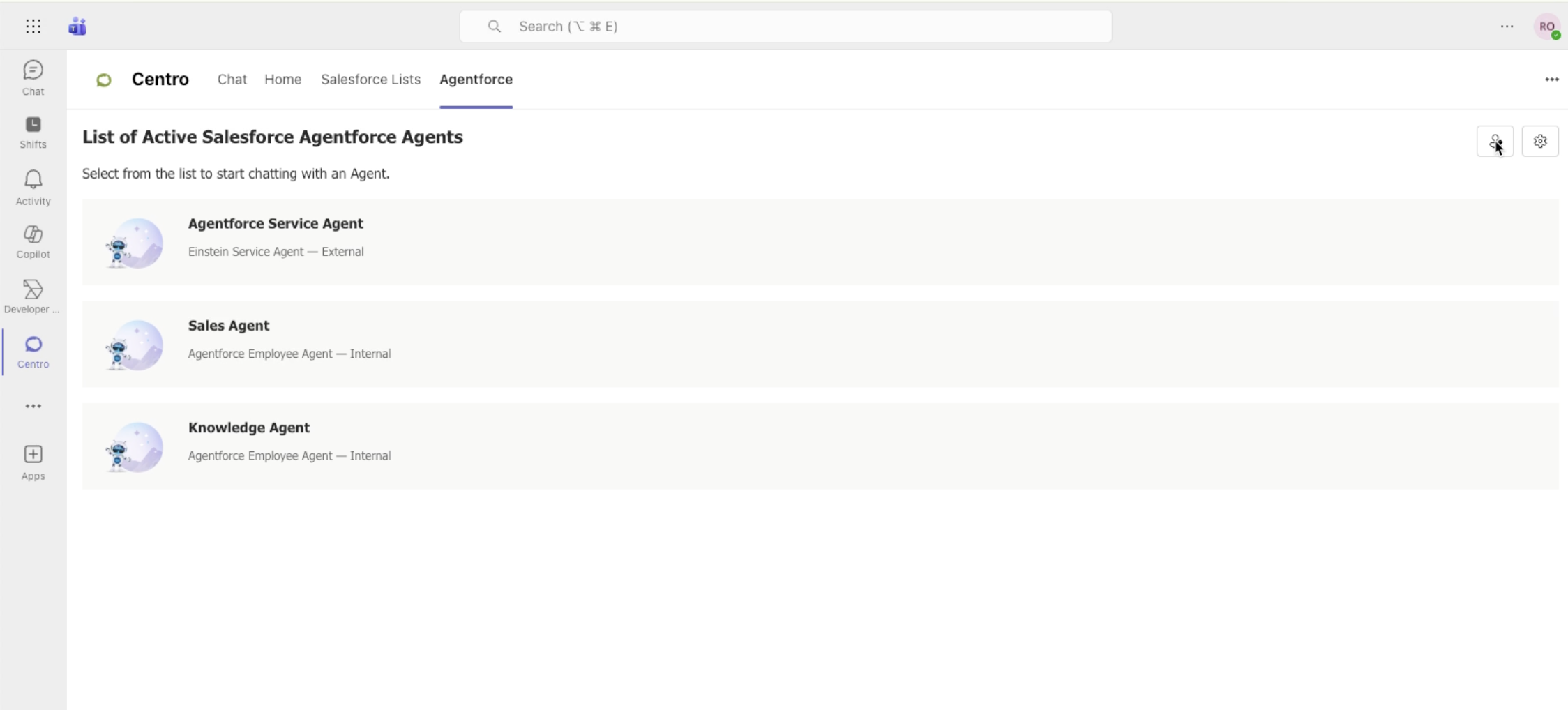
Step 4: Create a Chat with the Agent
-
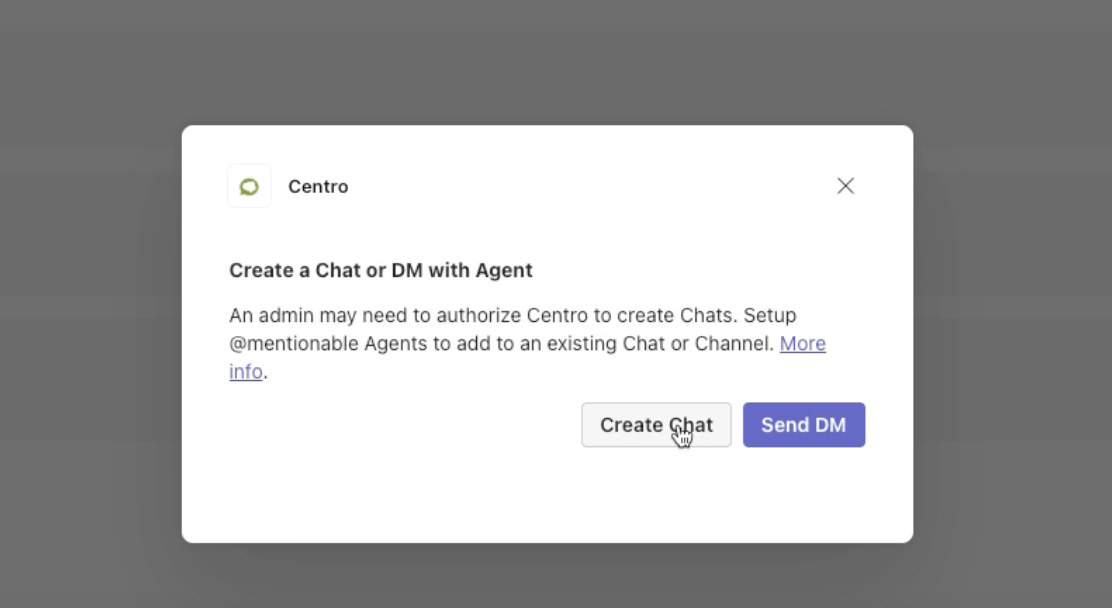
Choose the Create a Chat option.
This will start a direct Microsoft Teams chat with the selected Agent Force agent.
Select the Take me there option.
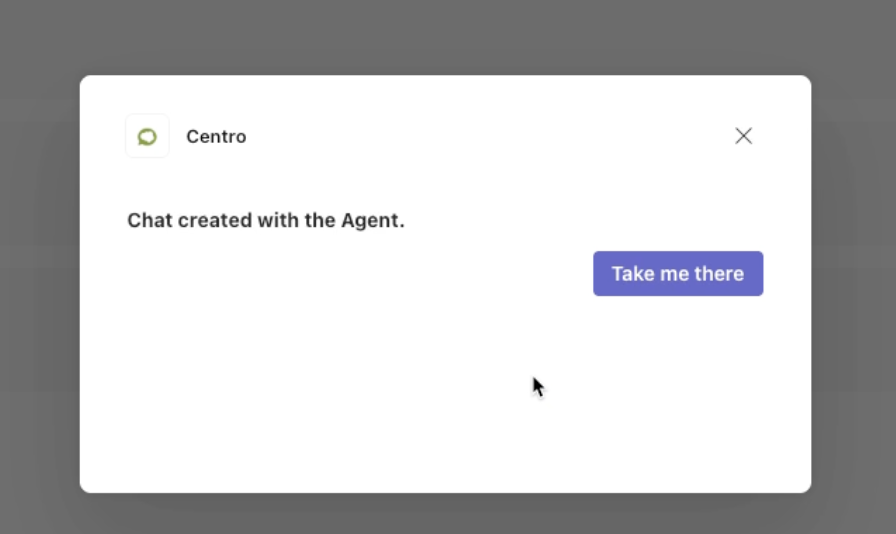
You can now interact with the agent directly within Teams.
Step 5: Interact with the Agent
-
Send a message to the agent in the chat.
Example: "Ask the agent to send my open opportunities."
Review the response returned by the agent.
Click or navigate to the opportunities as needed.
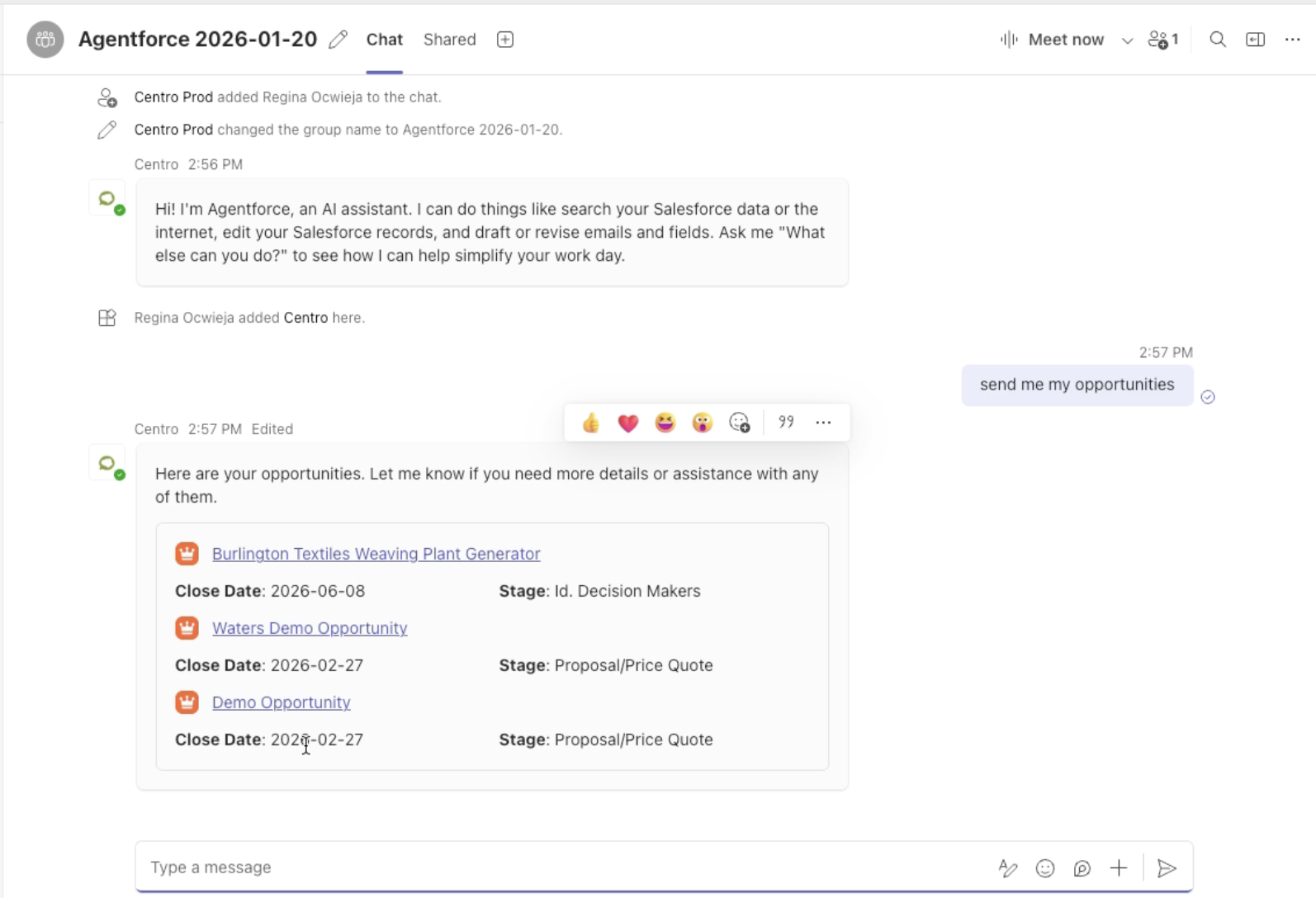
This confirms the agent is responding and returning actionable data.
Step 6: Validate Agent Responses
To further test and validate the agent:
Switch between Microsoft Teams and the Agent Force Builder.
Ask the same question in the Agent Force Builder.
-
Compare the response:
The response in Teams should match the response in the Agent Force Builder.
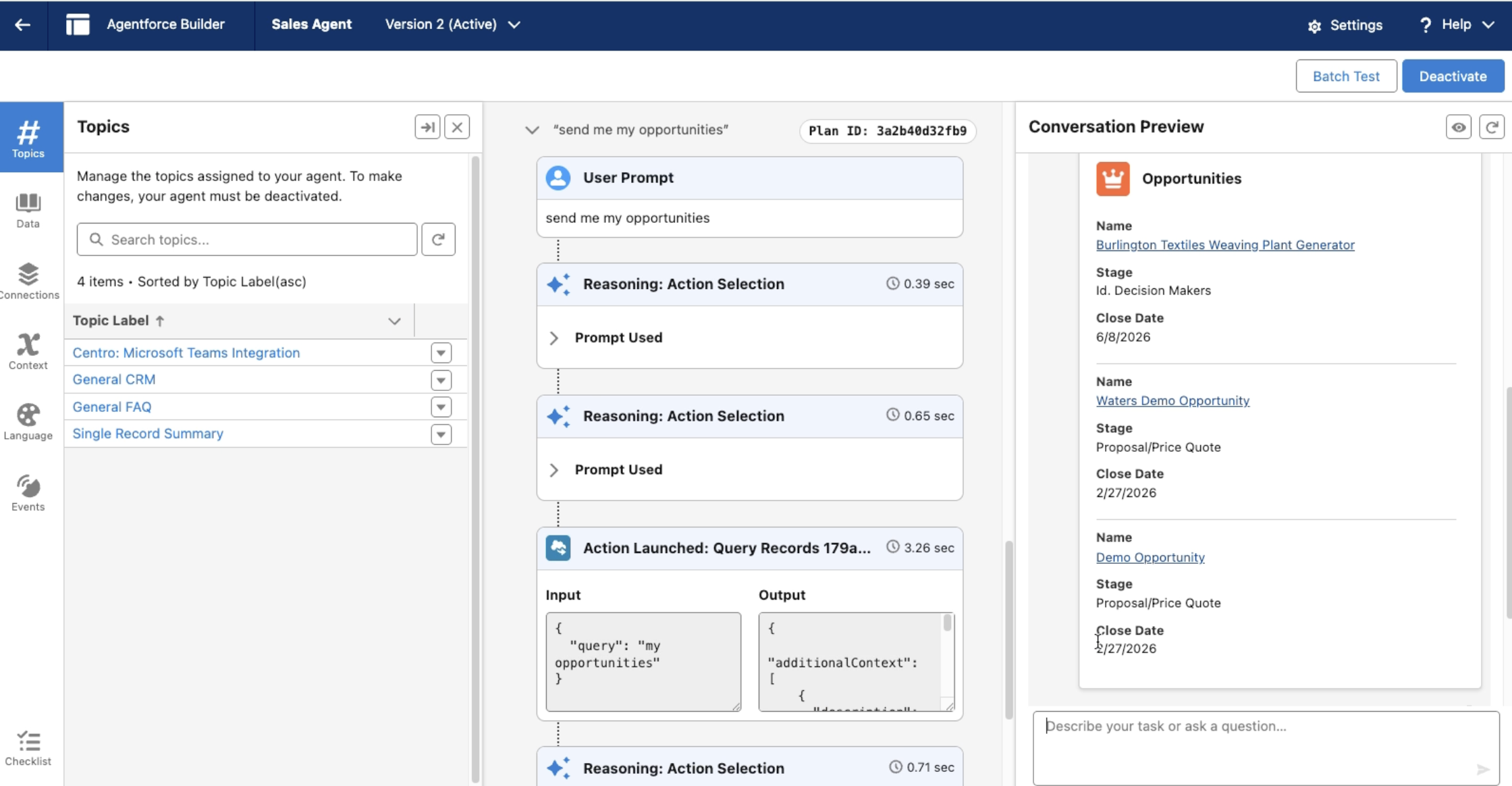
Matching responses confirm that the agent is functioning correctly and that the Microsoft Teams integration is working as expected.
Watch the Video
Summary
By following these steps, you can:
Confirm that authentication is working correctly
Interact with employee agents in Microsoft Teams
Validate agent responses against the Agent Force Builder
Ensure the Centro and Microsoft Teams integration is functioning properly
If you have any questions or run into issues, please reach out to the Centro support team.