
Authenticate to Employee Agentforce Agents in MS Teams with Centro
This article explains how to authenticate your Microsoft Teams user to your Salesforce user so you can access the Agentforce agents you're permitted to use within Centro.
Prerequisites.
The Centro app is installed and configured in Salesforce.
The Centro app is installed in Microsoft Teams.
You have access to the Centro app and the Agentforce tab.
Authenticate your Teams user to Salesforce
In Microsoft Teams, open the Centro app.
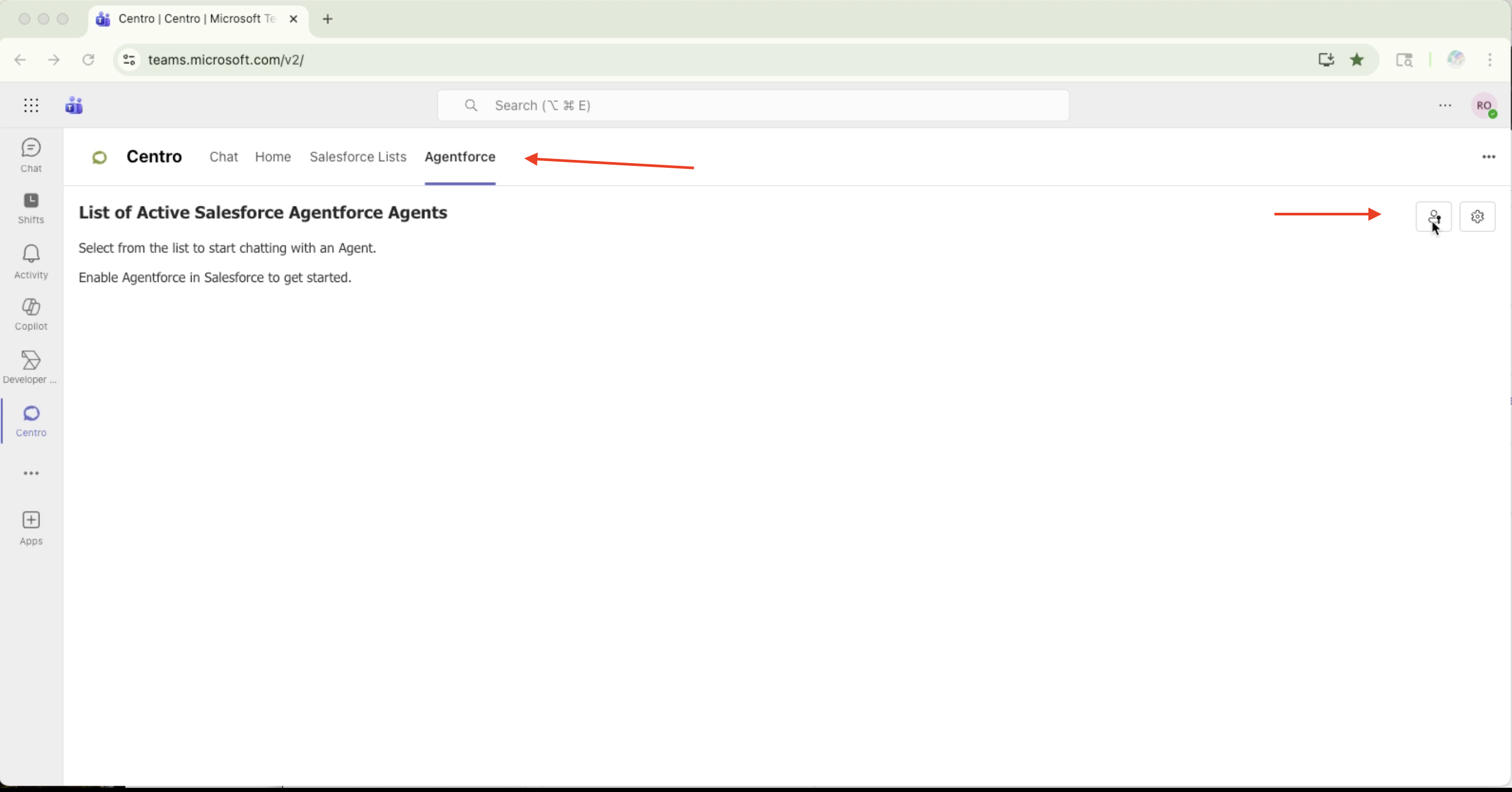
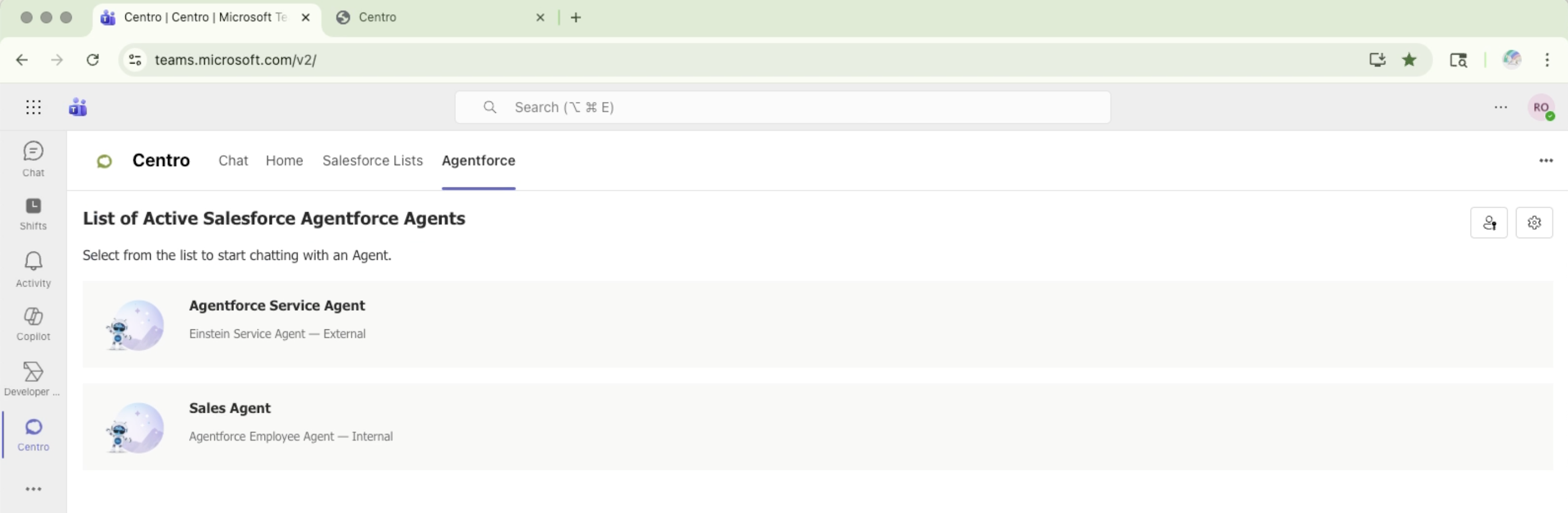
Navigate to the Agentforce tab.
Select the person-with-a-key icon (authentication).
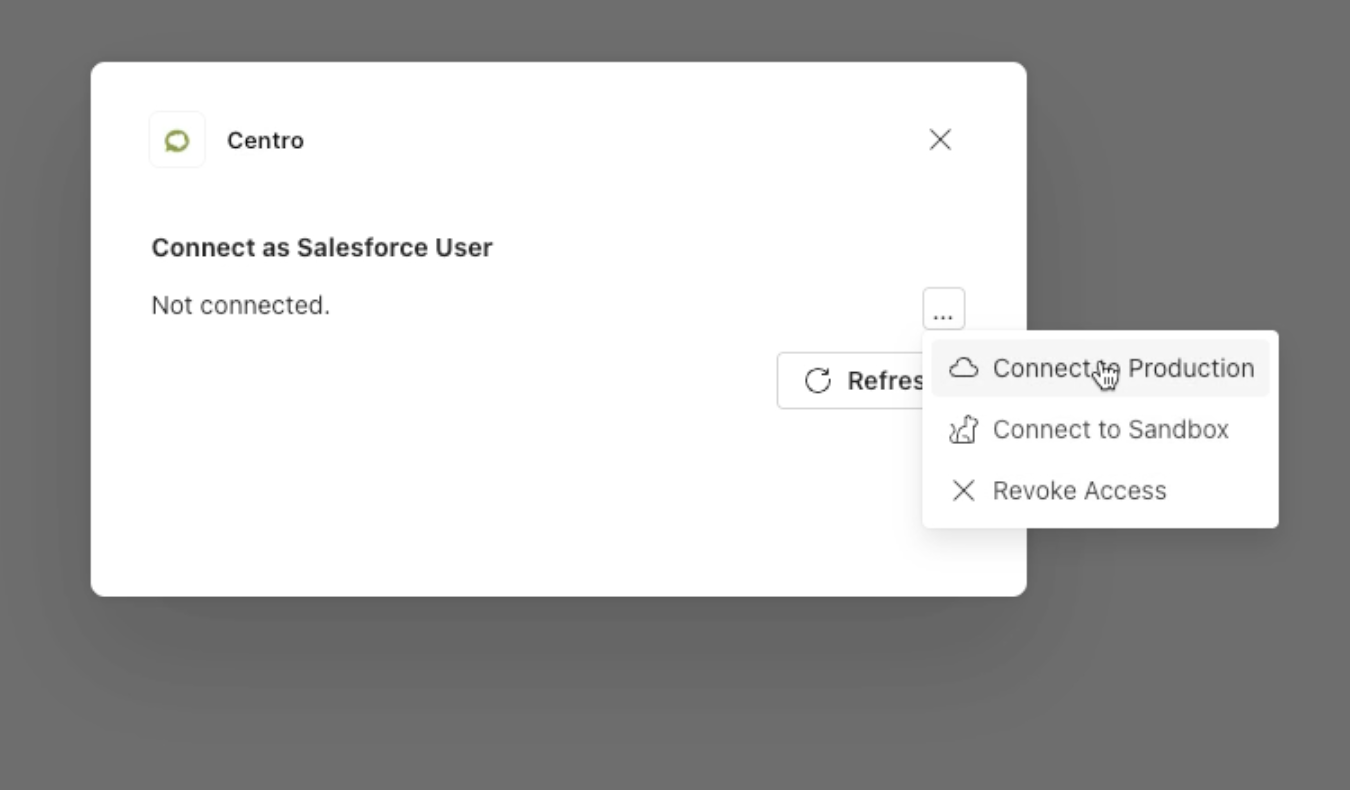
Click the three dots (more options), then choose which Salesforce environment to authenticate:
Production
Sandbox
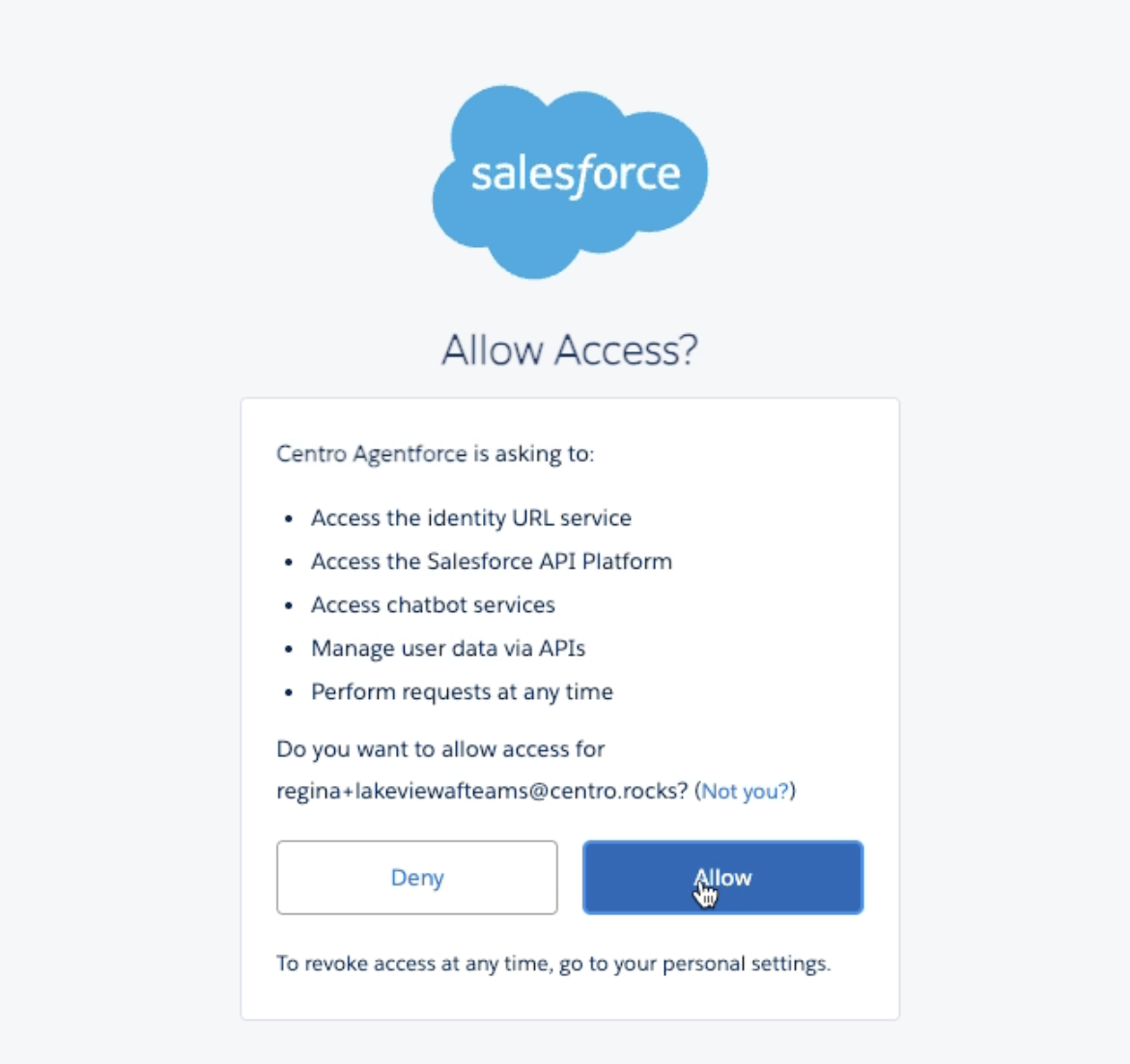
When prompted, allow the requested scopes for the Centro application. This links your Microsoft Teams user to your Salesforce user.
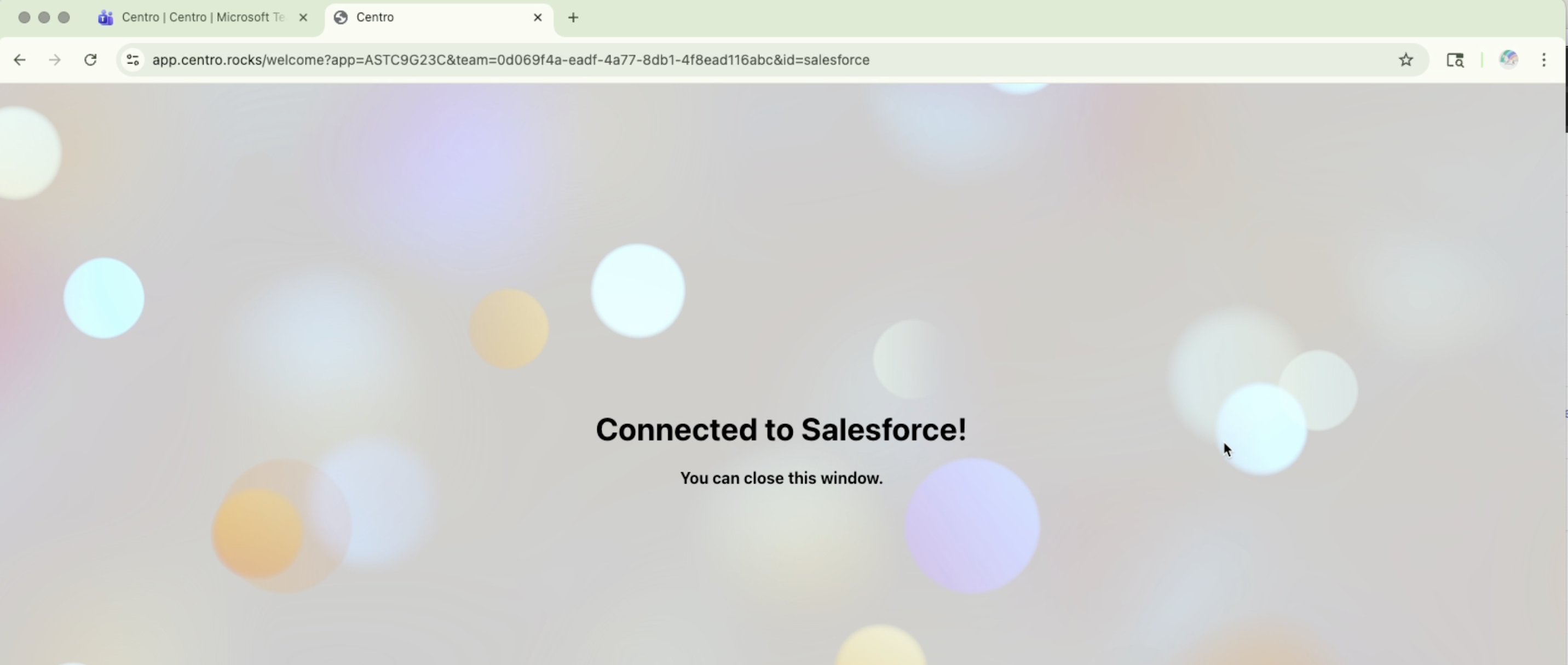
Tip: If you don't see changes immediately after authenticating, refresh the Teams app (next section).
Refresh and confirm agent access
Return to the Microsoft Teams app and refresh your screen.
Go back to the Agentforce tab.
You should now see the list of agents you're allowed to use.
Test the authentication
Select an agent from the list.
Open a direct message (DM) to interact with the agent.
Ask the agent a question and confirm you receive a response.
Troubleshooting
I don't see any agents after authenticating.
Refresh Teams, return to the Agentforce tab, and confirm you authenticated to the correct environment (Production vs Sandbox).The auth prompt keeps appearing.
Make sure you allowed the requested scopes and that your Teams account matches the intended Salesforce user.I selected the wrong environment.
Re-run authentication and choose the correct environment (Production or Sandbox).
Need help?
If you have questions or run into issues, contact your Centro admin or Centro support.