
Setup Service Agents (External) Create and Configure a Connected App
Service (or External) Agentforce Agents can be exposed in Microsoft Teams via a Connected App configured to the Centro Teams app.
Note: Unlike the Employee Agents, Service Agents use a shared user connection. The Agent should be configured in a way knowing that anyone in Teams may interact with the agent. Centro can pass the Agent Teams user information such as the email address so that the Agent can behave in a desired manner.
🔐 Step 1: Set up and Configure an External Client App
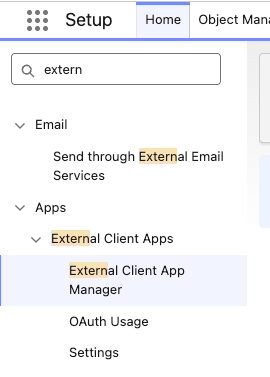
1a) In Salesforce Setup, use the Quick Find box search for:
External Client Apps
Then select External Client App Manager
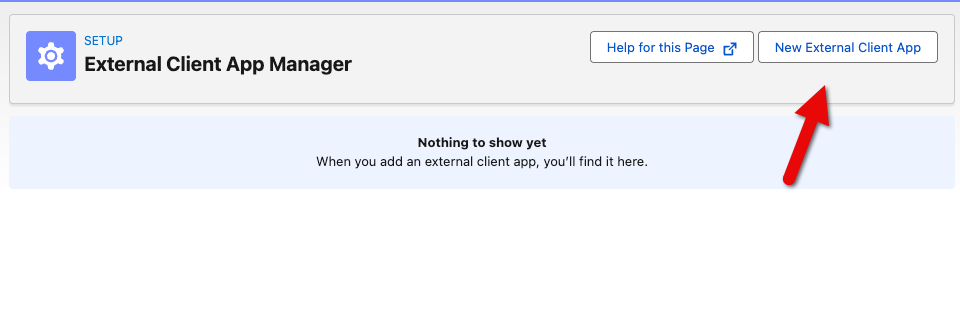
1b) Select New External Client App
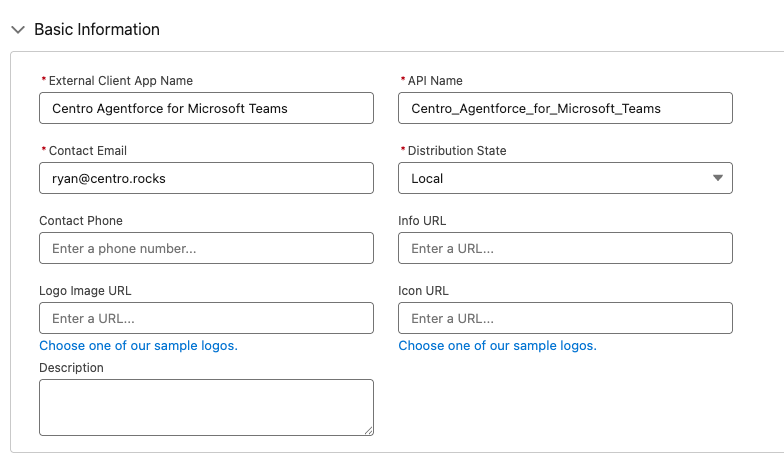
1c) Specify a External Client App Name (Perhaps "Centro Agentforce for Microsoft Teams") and contact email. All other Basic info can be left blank
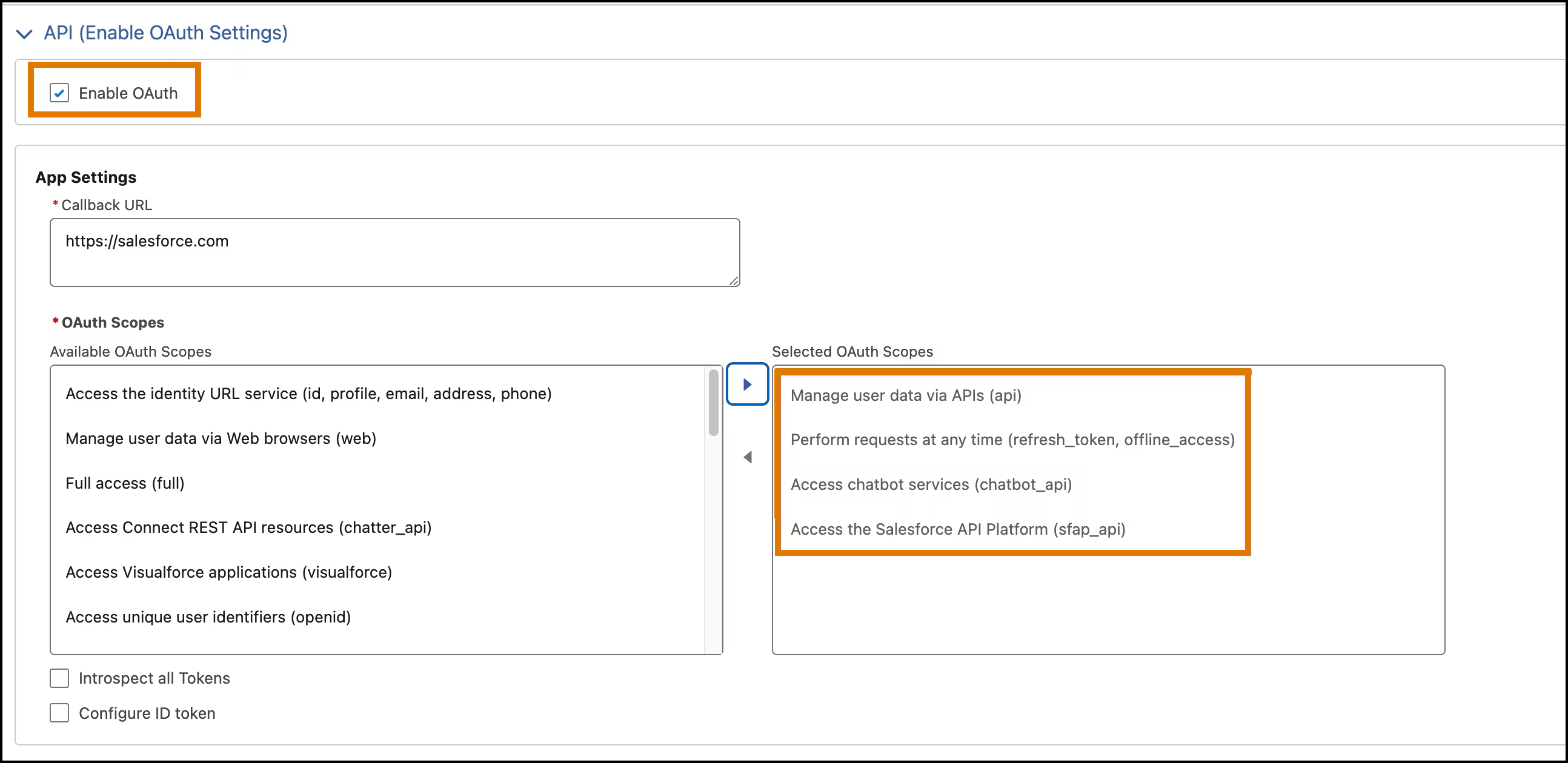
1d) In the API (Enable OAuth Settings) section, Select Enable OAuth set the Callback URL fields and use these OAuth scopes:
Callback URL: https://salesforce.com
- Manage User data via APIs (api)
- Perform requests at any time (refresh_token, offline_access)
- Access chatbot services (chatbot_api)
- Access the Salesforce API Platform (sfap_api)
1e) Select these additional OAuth settings in the Flow Enablement and Security Section:
- Enable Client Credentials Credentials Flow: Allows your app to exchange its client credentials for an access token
- Issue JWT Web Toke (JWT)- Based access token for named users: Allows your app to issue tokens for named users
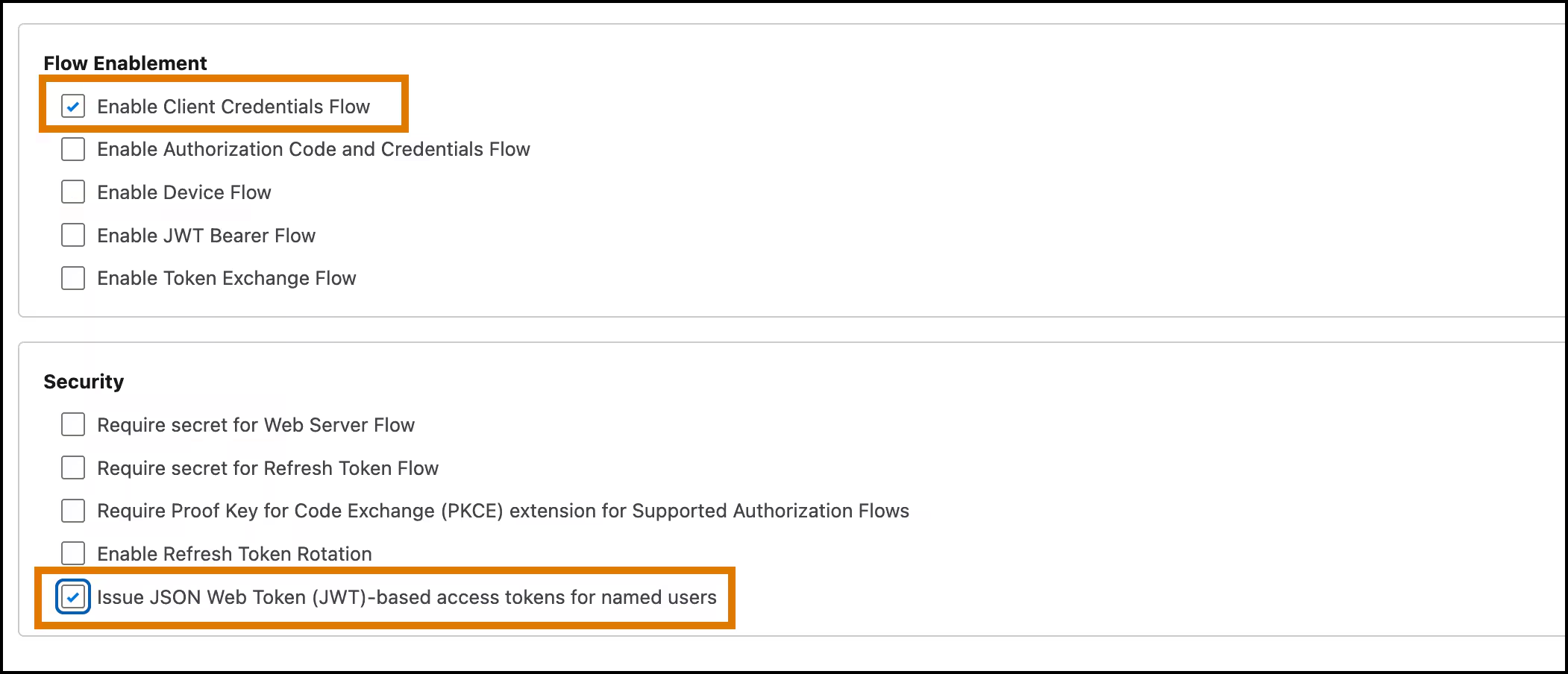
1f) Deselect in the Security section:
- Requre secret for Web Server Flow
- Require secret for Refresh Token Flow
- Require Proof Key for Code Exchange (PKCE) extension for Support Authorization Flows
1g) Create the App (blue button)
1h) From your app settings, click the Policy tab, then click the Edit button:
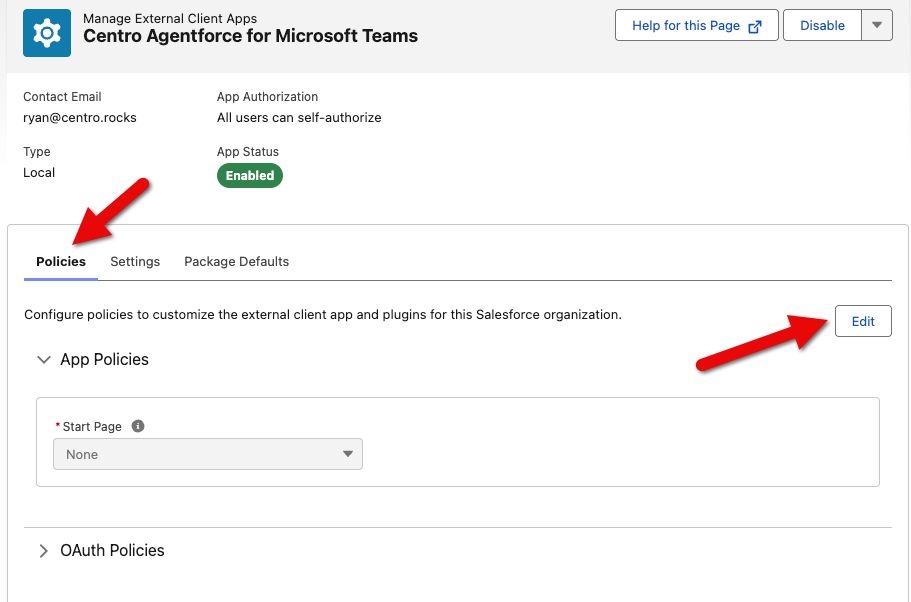
1i) In the OAuth Policies section->OAuth Flows and External Client Apps Enhancements, click Enable Client Credentials Flow checkbox. Set the Run As (Username) to the User Name of a user that has at least API Only Access. Note: Even though the field shows Email, you must use the UserName, not the email of this user.
1j) Save the changes
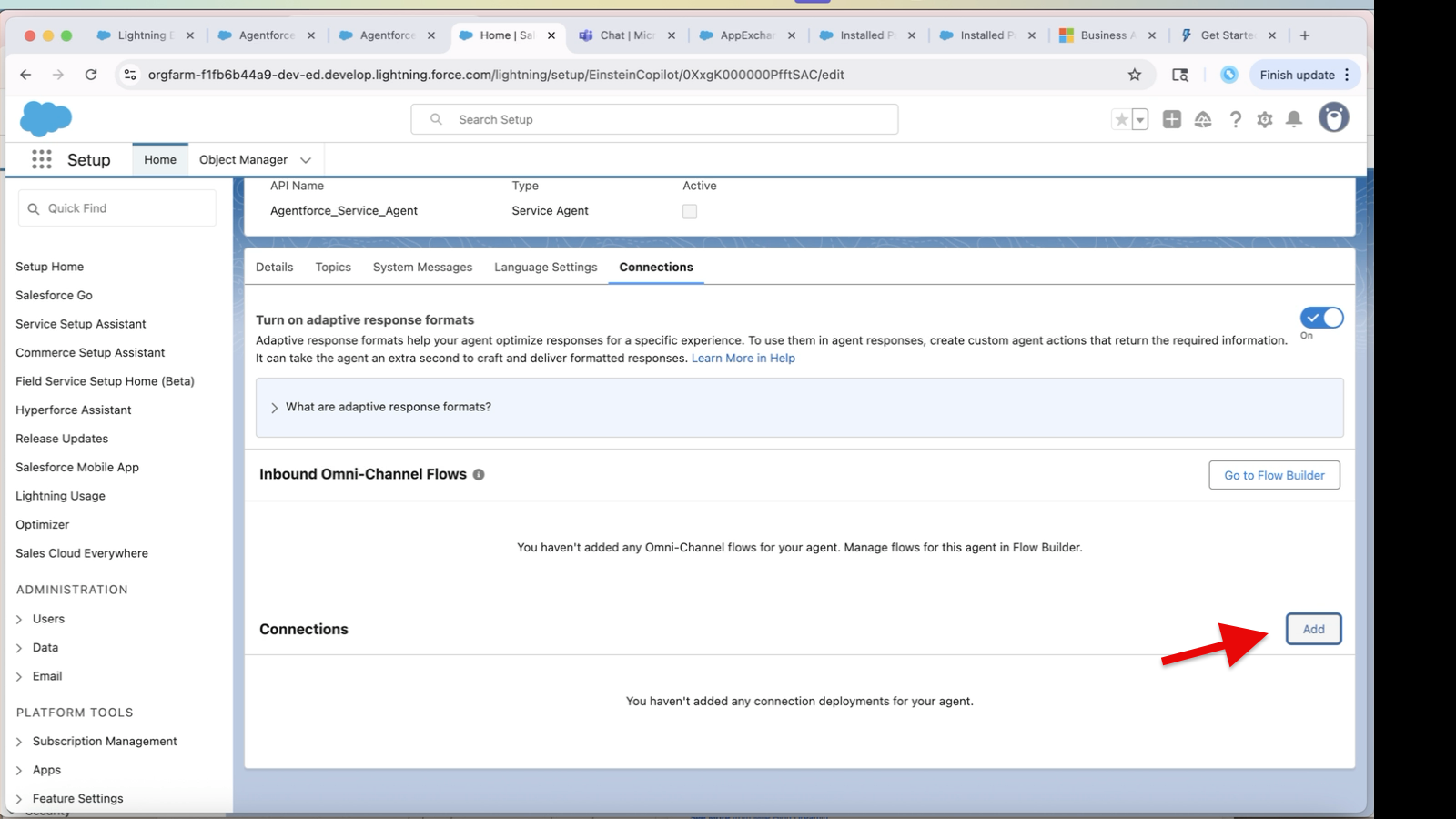
1k) Go to Agentforce → Agents → Select your Agent -> Connections Tab
Click Add in the Connections section detail
Select the connected app you just created
Obtain Client Key and Secret and Update Team
2a) From the App, now select the Settings tab, the expand the OAuth Settings section. Click the Consumer Key and Secret button:
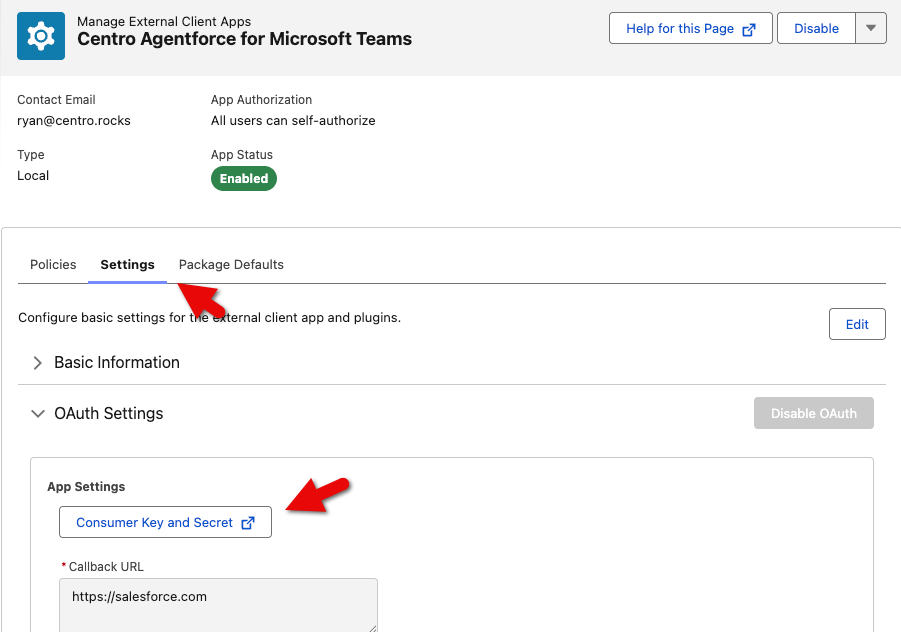
2b) You'll get an auth challenge, complete the challenge from the code that was sent to your email in step 1c.
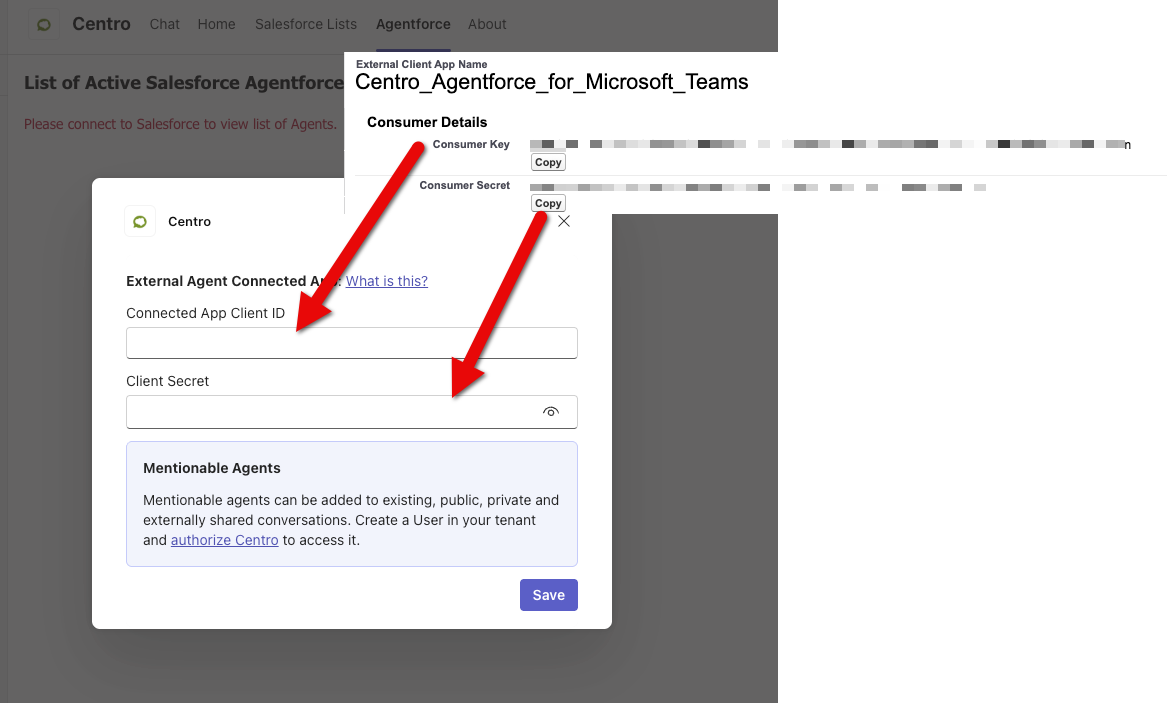
2c) You'll see the Consumer Key and Secret. Keep this tab open, as you'll copy and paste these into the Centro App

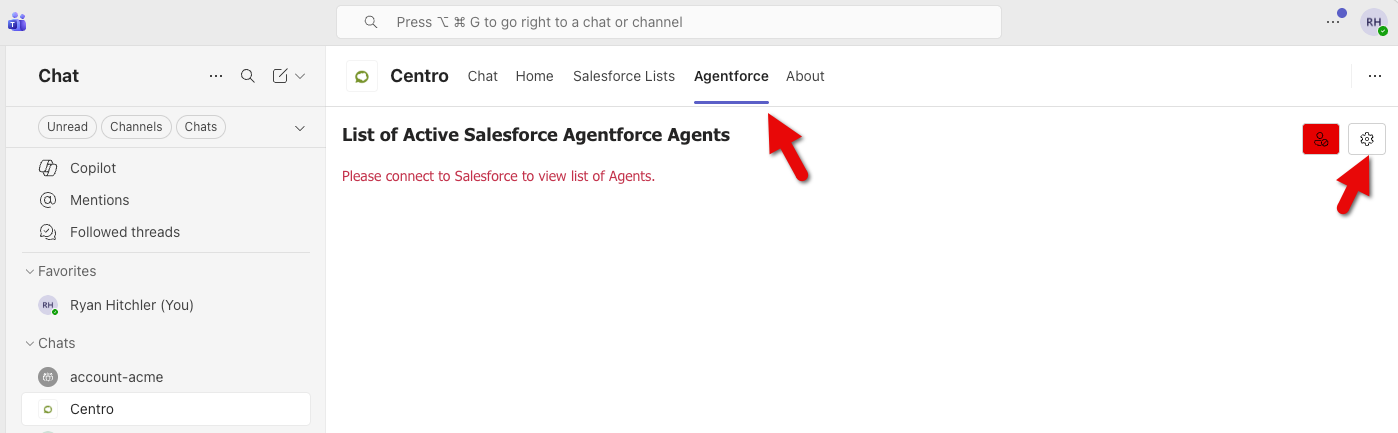
2d) Now back in Microsoft Teams, go to the Centro App->Agentforce Tab-> Click the White Gear:
2e) Now copy the Consumer Key and paste into the Connected App Client ID field, and the Consumer Secret into the Client Secret field and click Save:
2f) Your list of Service Agents should appear in the list.