
How do you install the Centro App into Microsoft Teams?
How do you install the Centro App into Microsoft Teams?
Please follow the instructions below to install the Centro App into Microsoft Teams:
Access the Centro App:
Click on the following link to visit the Microsoft AppSource and click Get it Now:
Centro App - Microsoft AppSource
Install the App:
On the AppSource page, click the "Add" button to install the Centro App into your Microsoft Teams environment.
Admin Authorization:
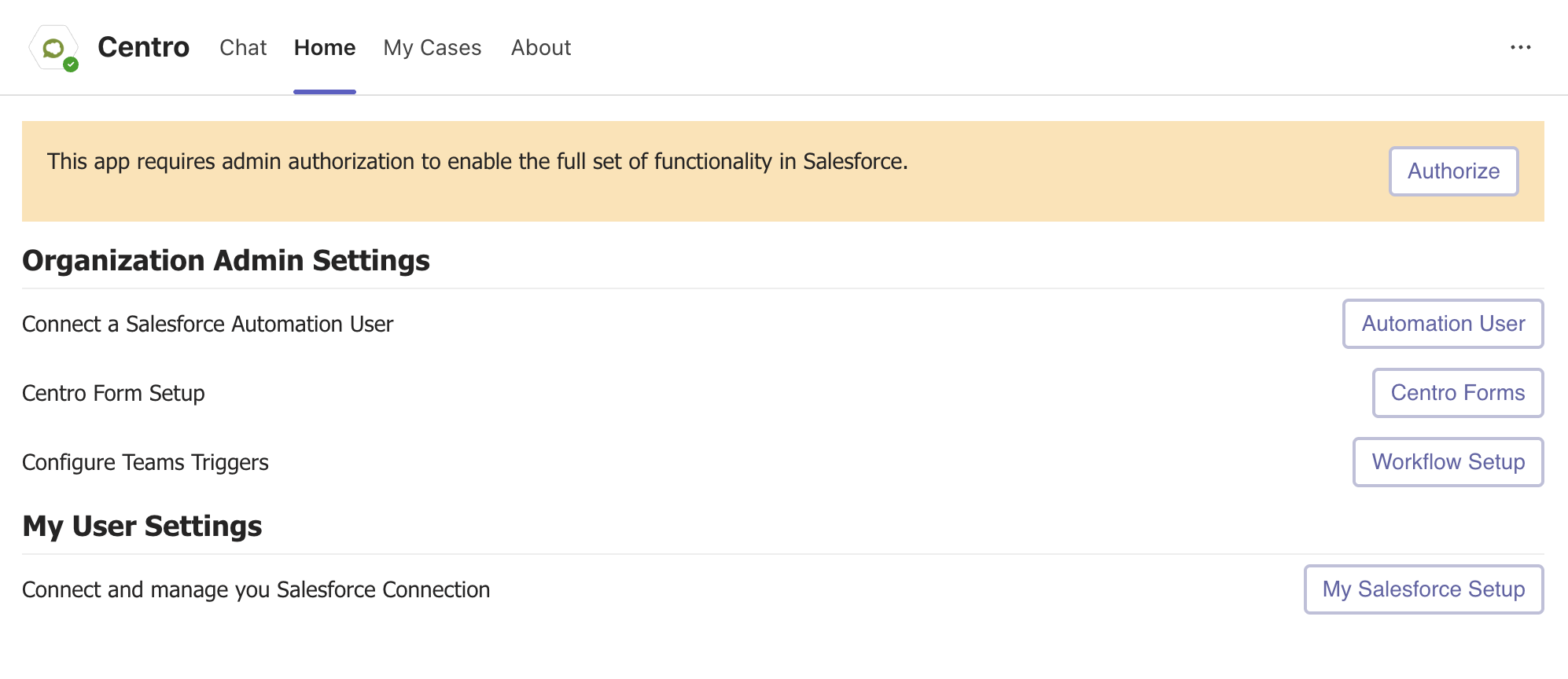
Once the app is installed, navigate to the Centro Home Tab within Microsoft Teams.
You'll need to click the "This app requires admin authorization to enable the full set of functionality in Salesforce" button to enable the full functionality. This requires admin permission in Microsoft Teams.
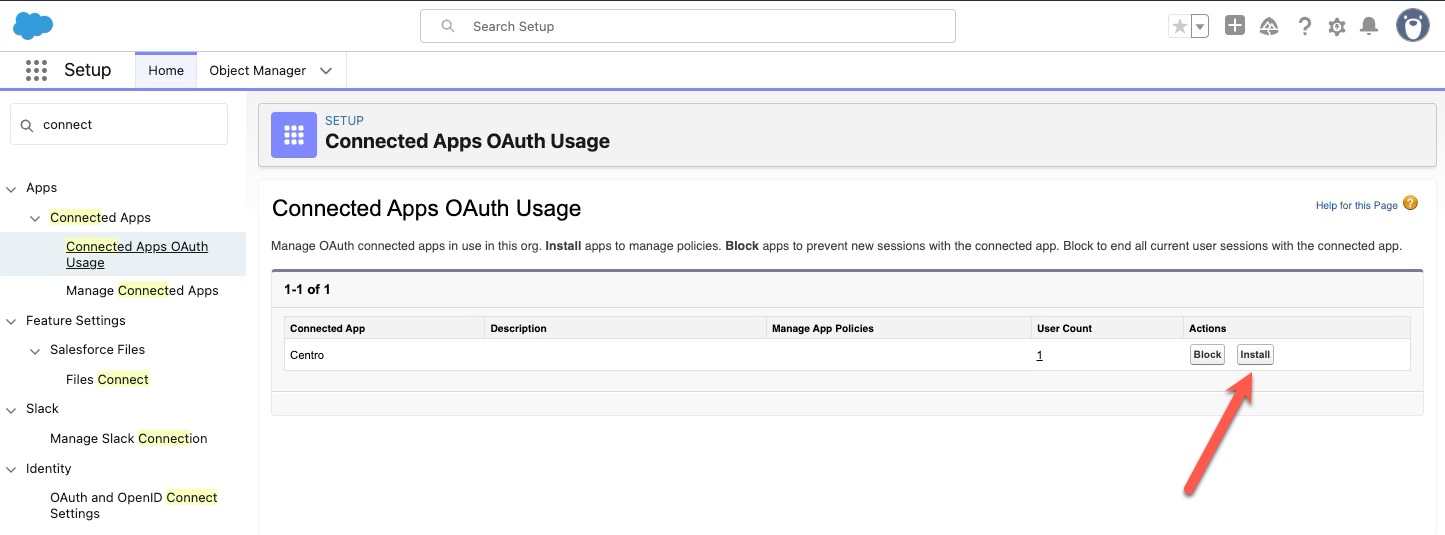
Then in Salesforce, go to Setup->Connect Apps->Connected Apps OAuth Usage, find Centro, and click Install.
Please do not hesitate to reach out if you encounter any issues or need further assistance.